
Proofread a transcript in two passes: facts first, then structure
Check names, numbers and jargon first, then speakers and paragraph breaks. Use search for repeat errors, and listen back only where it matters.

Armin
Published 9 min read

Key takeaways
- Skimming misses errors because a plausible wrong word reads fine. Hunt for one kind of error at a time.
- Spot-check the audio before you edit. If it needs a fresh upload with noise removal, edits made first are lost.
- Pass one checks names, numbers and jargon. Pass two checks speakers, sentences and paragraph breaks.
- Search finds every paragraph with a name in it. Play the audio, click the word to hear it, and fix it in the line.
- Proofread before you make summaries or caption files, so they're built from the corrected text.
Automated transcripts are usually close, but "close" leaves room for a wrong name, a swapped number or a speaker label pointing at the wrong person. To proofread a transcript quickly, make two passes: first names, numbers and technical terms, then speaker labels, sentences and paragraph breaks. Use search to catch repeated errors, and go back to the audio only where the text looks wrong or the stakes are high. We show each step on a real podcast clip, including what our check found and what it didn't.
Why skimming isn't enough when you proofread a transcript
A skim reads for sense, and a transcript almost always makes sense. Your brain fills the gaps, so a wrong word that sounds plausible slides right past you. "Hundred" for "thousand", "can" for "can't" and "Marin" for "Maren" all read fine.
That's why it helps to work from a list of things to hunt for, not a general feeling of "does this look right". Each pass looks for one kind of error, which keeps your attention on one thing at a time and makes each pass quicker.
Before you start: spot-check the audio
Play one short stretch from the middle of the recording and compare it with the text. If it's clean, carry on. If background noise has garbled it, decide now whether to transcribe again, because a finished transcript has no re-run button and a new upload is a new transcript: any edits you made to the first one stay behind.
For a noisy recording, upload the file again with "Remove background noise" switched on in Advanced Settings. It's on paid plans, counts as 2 times the file's minutes, and works on files up to 60 minutes and 500 MB. The new upload uses the file's minutes again on top of the first run.
Two more things help before the first pass. The player has a speed setting, and 0.75× or 0.5× makes fast or mumbled stretches much easier to check. And all the editing below happens on the web dashboard, where you can change any word in place; changes save as you go.
Pass one: check the facts
Read through once, and stop only for three kinds of content:
- Names. People, companies, products and places. A transcript has no way of knowing how your guest spells her surname.
- Numbers. Prices, dates, percentages, counts and measurements. A single wrong digit changes the meaning.
- Jargon. Technical terms, acronyms and anything specific to your field.
How the common errors tend to look, and how to catch them:
- Wrong name: misspelled the same way each time, or differently each time. Search for the name and its likely variants.
- Wrong number: "fifteen" turned into "fifty". Check every figure against your notes or slides, and replay the ones that matter.
- Missing negative: "can't" turned into "can". Reread any sentence that surprises you.
- Mangled jargon: a technical term replaced by a similar-sounding word. Compare against a short glossary.
- Homophone: "their" for "there", "weight" for "wait". These sound identical, so listening won't catch them; read for meaning.
If you work with the same terms often, the best fix comes before the next upload: the Keyterms field in the upload dialog takes your names and jargon in advance, at 1.25 times the file's minutes. It won't remove the need to review, but it cuts the repeat errors you'll find in pass one.
Pass two: check the structure
Now you're checking that the transcript is laid out so someone can follow it.
Speaker labels
On a recording with several people, a label can slip where two people talk over each other, so check every change of speaker.
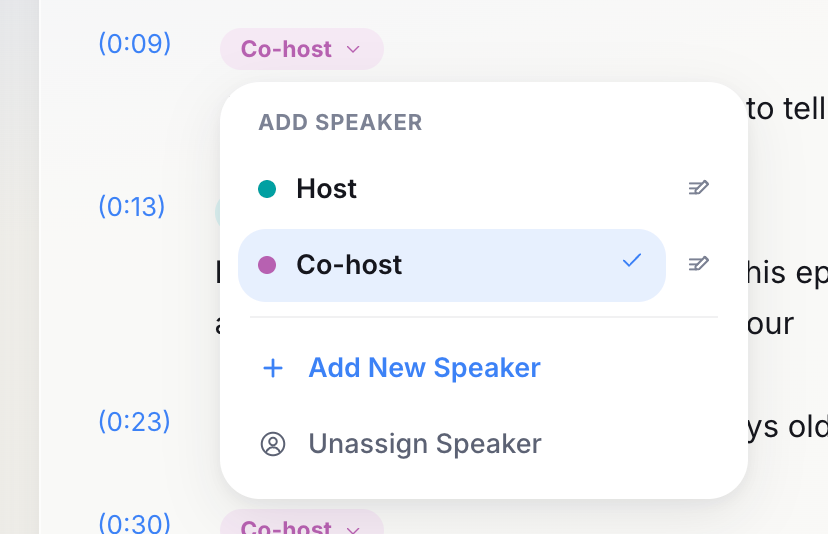
- To move one paragraph to the right person, click its speaker label. The list shows every speaker in the file, with a check on the current one; click the right name.
- If someone was missed, choose "Add New Speaker". "Unassign Speaker" removes the label.
- To give a speaker a real name, click the pencil next to that name in the list, type it and press Enter. It applies to all paragraphs unless you choose "This paragraph".
Paste a link, get a searchable transcript
Free plan includes 30 minutes of transcription every month. No credit card.
Mind which pencil you click: the list shows every speaker, so the pencil decides who gets renamed, not the label you opened.
Sentences and paragraph breaks
The transcript starts a new paragraph roughly every 30 words, or when the speaker changes, whether or not a sentence has ended. Where a sentence is cut in two, put the cursor at the start of the second paragraph and press Backspace to join them; press Enter where you want a new paragraph to begin. Read the punctuation too: a missing full stop or a question written as a statement changes how a quote reads. This matters beyond looks, because caption files break at the same paragraphs.
Anything unclear
If a stretch is inaudible, mark it with a consistent tag and its time, such as [inaudible 0:42], instead of guessing, so you or someone else can find it again. Decide whether it matters enough to listen to again at a slower speed. If you plan to publish the transcript or quote from it, our guide to choosing verbatim or clean text covers what to keep and what to cut.
Use search to catch repeated errors
A transcript that mishears a name often mishears it the same way every time, so one search can show you every place it went wrong. On the transcript page, type into "Find in transcript…": it counts the paragraphs that contain a match (not individual words), highlights every occurrence, and steps through them with the up and down arrows. It doesn't replace text, so you fix each match by hand.
Pick the five or six names or terms that matter most, search for each, and for every hit:
- Step to the next match with the down arrow, or back with the up arrow.
- With the audio playing, click the word; the player jumps to it so you hear that moment.
- If it's wrong, correct it in the line, then move on.
Then search for likely misspellings. If your guest is Maren, try "Marin", "Marion" and "Karen". For a figure you doubt, search for it both as words and as digits, and correct only the matches you've confirmed are wrong.
Our test: a podcast clip with a guest and a sponsor
We tried the whole routine on a scripted 36-second podcast clip recorded for this guide: two synthetic voices, a host and a co-host, with a guest's name said twice and a sponsor read. The show, the guest Maren Holt and the sponsor are invented. We uploaded it with the default settings and no Keyterms, so the name wasn't given in advance. The transcript was ready about 13 seconds later, found both speakers and used 1 minute of the allowance, since a 36-second file counts as a full minute.
Searching for "Maren" showed 1/2, and the down arrow took us to 2/2: the host's line at 0:00 ("we were talking about Maren Holt") and the co-host's at 0:09 ("Maren Holt joins us"). Both were spelled right, and so were both matches for "Holt", the sponsor "Fernwood" and the promo code "FERN20". Synthetic voices reading a script are the easiest case, so on a real recording expect this search to turn up more.
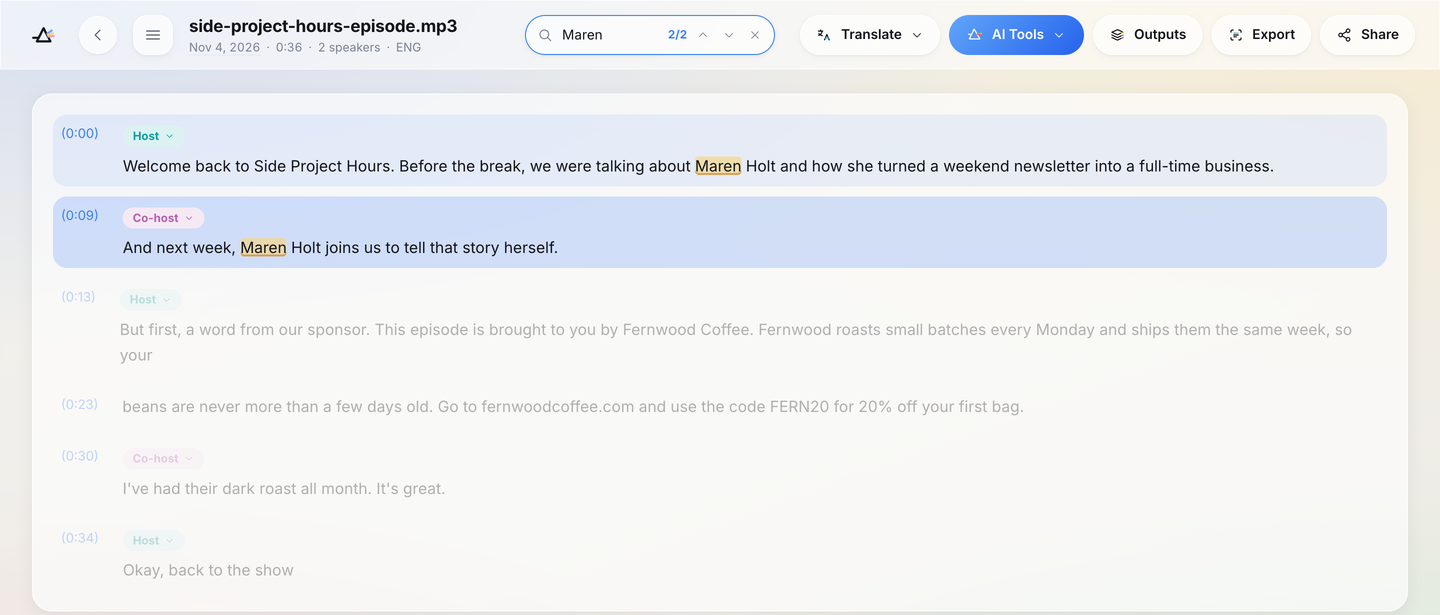
Pass two had more to do, and you can see it in the screenshot:
- A sentence cut in two. The sponsor read was split at 0:23 mid-sentence: one paragraph ends "…ships them the same week, so your" and the next begins "beans are never more than a few days old." The fix is Backspace at the start of the 0:23 paragraph.
- A missing full stop. The last line reads "Okay, back to the show", with no full stop.
- Formatting the transcript chose on its own. The spoken "fernwood coffee dot com" came back as fernwoodcoffee.com, and "twenty percent" came back in digits with a percent sign. If your show notes spell out numbers or web addresses, search for them and make them consistent.
When to listen to the audio again
You don't need to replay the whole recording. Listen only where it matters:
- Quotes you plan to publish. A quote carries the speaker's name and reputation.
- Numbers and names in anything legal, financial, medical or contractual. For drug names and dosages, our guide to reviewing a medical transcript goes deeper.
- Sentences that read strangely. A strange sentence often means a misheard word.
How much of this you do depends on the use. A transcript for your own notes can be checked lightly; one for a published quote or a client needs both passes plus a listen.
The routine, in order
- Spot-check the audio, and re-upload with noise removal if you need to.
- Pass one: names, numbers, jargon.
- Pass two: speakers, sentences, paragraph breaks, unclear stretches.
- Search for your key names and their misspellings.
- Listen to the quotes and figures that matter.
- Re-read every line you changed; a fresh typo in a correction is easy to make.
- Only then make summaries, show notes or caption files, so they're built from the corrected text.
Once you've used this routine on a few files, you'll know which errors your recordings tend to produce and where to look first. Upload your next recording to audio to text, give it the two passes, and keep a note of what you corrected: after three or four files, that note is your list of what to search for first.
Frequently asked questions
What errors are most common in an automated transcript?
Names, numbers and technical terms are the usual trouble spots. Others include dropped negatives, similar-sounding words and speaker labels that shift when people talk over each other. If words seem to be missing, check whether "No verbatim" was on at upload: it removes filler words and false starts on purpose, while the default keeps every word.
Should you fix errors as you read, or note them first?
Fix them as you go, but keep each pass narrow: in pass one only correct facts, in pass two only structure. Mixing everything makes it easy to miss things. Edits save automatically in the web editor, so you can stop and pick the review up later.
How do you handle sounds like laughter or music?
If "Tag audio events" was on when you uploaded (it is by default), laughter, applause, music and similar sounds are already marked in the transcript, so you don't need to add them. Use your own tag, such as [inaudible 0:42], only for speech you can't make out.
Can a custom word list help?
Yes, on paid plans. Keyterms takes up to 1,000 names, acronyms and terms before you transcribe, and ready-made term packs cover fields such as Legal, Technology & Software and Media & Podcasting. You can save a list and reuse it for the next upload. It counts as 1.25 times the file's minutes.
Do my corrections show up in exports and summaries?
In exports, yes: all six formats, from TXT to SRT, are written from the corrected transcript, speaker names included. A summary, quiz or translation made before you corrected the transcript keeps the old wording. Fix a translation in its own editor; making a summary again uses another AI generation, of which Free has 3 a month.


Turn hours of audio into searchable text
Upload a file or paste a link. Speaker labels, translations, and six export formats included.