
Mp4 Won't Upload For Transcription? Fixes For Large Files, Silent Video And Format Errors
An MP4 that refuses to upload does not necessarily mean the recording is unusable. File size and length limits, missing or quiet audio, unusual export settings, unstable connections, and damaged files can all prevent a transcription job from starting. This guide walks through the quickest checks, including reviewing plan limits, exporting audio from a large video, checking that the MP4 contains usable speech, re-exporting unusual files, and splitting recordings that exceed length limits. It also covers what to check after a successful upload, including speaker labels, custom vocabulary, transcription modes, and transcript accuracy, so you can get from a failed upload to a usable transcript without re-recording the session.

Armin
Published 6 min read

Key takeaways
- Check your plan's file size, file length, and monthly transcription limits before troubleshooting the MP4.
- Exporting the audio as MP3 or M4A can solve large-file problems when the video itself is not needed.
- Confirm that the MP4 contains usable audio and re-export files with unusual or incompatible settings.
- A stable connection and smaller files can help prevent uploads from stalling or restarting.
- After transcription, review names, numbers, specialist terms, and speaker labels against the original recording.
If your MP4 won't upload for transcription, the cause is almost always one of five things: the file is too large or too long for your plan, the video has no usable audio, the export format is unusual, the connection dropped, or the file is damaged. Check your plan limits first, then export the audio as a smaller file and try again. Good mp4 transcription software accepts many formats, but every plan still has size and length caps.
Most MP4 upload problems are fixable in a few minutes, without re-recording anything. This guide goes through each cause in the order to check it, then shows how to avoid the same problem next time.
Why does an MP4 upload fail?
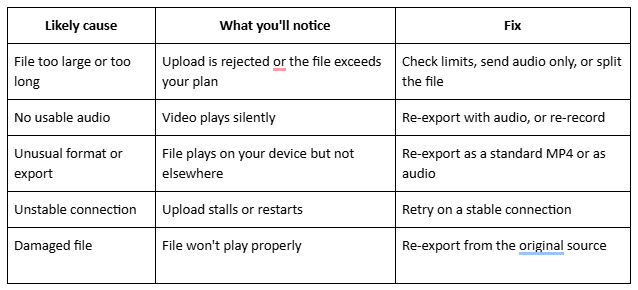
An MP4 upload usually fails because of size, length, audio, format or connection. Working through them in that order finds the cause fastest.
What are the file limits for an MP4 upload?
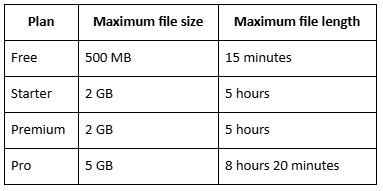
Every plan caps both file size and file length, and an MP4 upload has to pass both. A file can be short enough but too large, or small enough but too long. These are the limits on PrismaScribe's pricing page:
Separately, each plan has a monthly transcription allowance. The free plan includes 30 minutes a month. If you're near your monthly allowance, that can stop a job even when the file itself is fine, so check your usage too.
How do you shrink a large MP4 before you upload it?
The simplest fix for a large MP4 upload is to send the sound only. Video files are large because of the picture, and a transcript only needs the audio. PrismaScribe accepts audio formats such as MP3 and M4A, so you don't need the video at all.
- Open the MP4 in a video editor, converter or export tool you already have.
- Export audio only as MP3 or M4A.
- Play the result for a few seconds to confirm the speech is clear.
- Upload the audio file instead.
- Keep the original MP4, in case you need it later for subtitles or a recap.
If you'd rather keep the video, trimming silent sections at the start and end can also bring a file under a limit. For a walkthrough of the upload step itself, see how to convert MP3 to text online.
What if the MP4 has no audio, or the audio is very quiet?
A video with no audio track has nothing to transcribe, so check before you upload. Play the file with the volume up and listen for speech. Screen recordings and some recording setups save the picture without the microphone or system sound, and some setups save audio as a separate file.
- No sound at all: re-export with audio included, find the separate audio file, or record again.
- Very quiet sound: try the file as it is, then compare with background-noise removal, which is available on paid plans. Keep whichever transcript reads better.
- Speech buried in noise: see tips for accurate voice-to-text transcription with noisy audio.
Paste a link, get a searchable transcript
Free plan includes 30 minutes of transcription every month. No credit card.
What if the format or export is unusual?
Re-export the video in a standard format. PrismaScribe accepts 16+ input formats, including MP4, MOV, MP3, WAV and M4A. A file can play fine on your own device and still fail elsewhere if it was exported with unusual settings. Exporting again with a standard preset, or exporting the audio alone, usually solves it.
If you're not sure which container a file uses, the file extension is the first thing to check. A file renamed to ".mp4" isn't necessarily an MP4.
What if the MP4 upload stalls partway?
When an MP4 upload stalls or fails partway, the connection is the most likely cause, especially with large files. Try these in order:
- Move to a stable connection, and avoid switching networks mid-upload.
- Keep the browser tab open until the upload finishes.
- Retry once, then try a different browser.
- Send a smaller file, such as audio only.
If it still fails, contact support at support@prismascribe.ai with the file type and size, and the plan you're on.
What if the recording is longer than your plan allows?
Split it at natural breaks, such as an agenda change or a break in the session, and transcribe each part separately. The free plan covers 30 minutes a month and 15 minutes a day, so a one-hour recording doesn't fit on it. Pick the 15 minutes you need, or use a paid plan or top-up hours for the whole hour.
- Rename the speakers in each transcript so labels stay consistent. PrismaScribe can label up to 32 speakers.
- Join the transcripts in a document afterward.
- Consider a paid plan for regular long files. The pricing page also lists pay-as-you-go top-up hours, so check the current details.
How do you check the transcript after an MP4 upload?
Once the upload works, transcription takes about 2 minutes for about an hour of audio. It's fast, but asynchronous, so expect a short wait. PrismaScribe reaches 99% accuracy on clean audio, and the errors that remain cluster around names, numbers and specialist terms. Check those against the recording.
- Choose clean-up or verbatim. Clean-up removes filler words and false starts, and verbatim keeps every word.
- Add names and terms to custom vocabulary on paid plans, before you upload.
- Export what you need: TXT, SRT, VTT, PDF, DOCX or Markdown. SRT and VTT are for subtitles, and PrismaScribe lets you set characters per line and caption duration.
If you're transcribing recordings from the past, stop letting old videos collect dust shows what to do with a whole archive.
How do you prevent MP4 upload problems next time?
Check the limits before recording, export audio only when you don't need the picture, and test with a short clip first. Small habits remove most problems.
- Check your plan's limits before each MP4 upload.
- Record with the microphone on, and play back ten seconds to confirm.
- Export audio only when you don't need video.
- Test one short MP4 upload before you send a long file.
- Keep the original and name files simply, with the date and topic.
What should you do next?
Open the file that failed and go down the table at the top: limits, audio, format, connection, damage. Most people find the cause in the first two checks. After that, the next MP4 upload should go through without trouble.
Frequently asked questions
Why won't my MP4 upload for transcription?
The most common causes are a file that's too large or too long for your plan, a video with no audio, an unusual export format, or an unstable connection. Check plan limits first, then try uploading audio only.
Can mp4 transcription software handle large video files?
Yes, within plan limits. PrismaScribe's Pro plan allows files up to 5 GB and 8 hours 20 minutes, while the free plan allows 500 MB and 15 minutes. Exporting audio only makes a large file much smaller.
Can I upload an MP4 longer than 15 minutes on the free plan?
No. The free plan caps each file at 15 minutes, with 30 minutes of transcription a month. Split the recording into shorter files or use a paid plan.
Do I need to convert my MP4 to MP3 first?
No, PrismaScribe accepts MP4 directly. Converting to audio is a workaround for large files or upload problems.
How long does transcription take once the file uploads?
About 2 minutes for about an hour of audio. It's fast, but asynchronous.


Turn hours of audio into searchable text
Upload a file or paste a link. Speaker labels, translations, and six export formats included.