
How to record Google Meet calls, with or without Workspace
Who can press Record in Google Meet, where the file goes, what to do when the button is missing, and how to turn the recording into a transcript.

Armin
Published 9 min read

Key takeaways
- Meet's own recording needs a paid Google plan, and only the host's side can start it.
- The recording lands in the organizer's Drive, in the Google Meet folder, not in yours.
- No Record button? Record your screen, or send a meeting bot to the call with its link.
- A Drive link can't be transcribed directly. Download the video, then upload the file.
- A screen recorder shows the others no notice, so tell them yourself before you start.
Google Meet has a Record button, but many people never see it: it depends on the Google plan behind the meeting and on who you are in the call. This guide covers how to record Google Meet when you have the button, where the recording goes afterwards, and two ways to record when the button isn't there. The last part turns the recording into a transcript with each speaker named. The Google details below come from Google Meet Help, checked on November 18, 2026.
Who can record in Google Meet
Two things decide whether you see Recording in a call.
The plan. Google's help page on recording lists these editions:
- Business Standard and Business Plus
- Essentials and Enterprise Essentials
- Enterprise Starter, Enterprise Standard and Enterprise Plus
- Education Plus (Staff licenses) and the Teaching and Learning Upgrade
- Workspace Individual
- Google One with 2 TB of storage or more
A free personal Google account isn't on the list, and neither is Business Starter. Google also says Education Fundamentals and Education Standard accounts can't record the meetings they organize. On a work or school account, an administrator has to allow recording too.
Your role. The host can record. So can a co-host, and people from the host's organization when Host Management, a setting the host can switch on in the call, is off. A guest from outside that organization can't start a recording unless the host makes them a co-host, and you can't record if you joined only to present.
How to record Google Meet when you have the button
Google says you can start a recording only on a computer or an Android device. On a computer:
- Join the meeting.
- At the bottom right, click Meeting tools, then Recording.
- Click Start recording.
- In the pop-up, click Start.
Everyone in the call gets a notice that recording has started, people outside your organization included. To finish, open Meeting tools, then Recording, click Stop recording and confirm. The recording also stops when everyone has left, and Google ends it after 8 hours.
The video shows the active speaker and anything that is presented. Other windows and notifications on your screen stay out of it. If you choose to record captions before you start, they are saved with the video.
Where a Google Meet recording goes
The file doesn't go to the person who pressed the button. It is saved to the meeting organizer's Google Drive, in a folder called Google Meet, with a sub-folder for each meeting. Google emails the link to the organizer and to the person who started the recording.
If you weren't the organizer and didn't start the recording, you won't get that email. Ask the organizer to share the file with you. To do anything with the recording outside Drive, open it there and choose Download: you get a video file you can keep, cut or transcribe.
How to record a Google Meet without the Record button
No button, because of the plan or because you're a guest? You have two options. In both, tell the others first.
Record your screen
Your computer can record the Meet window like any other window.
On a Mac:
- Press Shift, Command and 5.
- Choose the window or the whole screen.
- Open Options and choose a microphone, or the video will have no sound from you.
- Click Record.
Paste a link, get a searchable transcript
Free plan includes 30 minutes of transcription every month. No credit card.
Apple's guide to screen recording (checked November 18, 2026) says the option that adds the computer's own sound, Include System Audio, needs macOS 27 or later. On an older Mac the other people are only picked up through your speakers and microphone, so don't wear headphones.
On Windows 11, press the Windows key, Shift and R to open Snipping Tool's recorder, drag over the area of the screen that shows the meeting and click Start. Microsoft's Snipping Tool page (checked the same day) doesn't say which sound ends up in the clip, which is one more reason for the test below.
Before a meeting that matters, record ten seconds of any video call and play it back. If you can't hear both yourself and the other side, fix the sound settings before the call, not after it.
Screen recording costs nothing, but you have to remember to start it, and the file is large because it is video.
Send a meeting bot with the link
The other way is a recorder that joins the call as a participant. PrismaScribe's meeting bot does this on paid plans, from the web dashboard or the iPhone app. That also makes it the route when you're on an iPhone, where Meet's own recording can't be started. On the web:
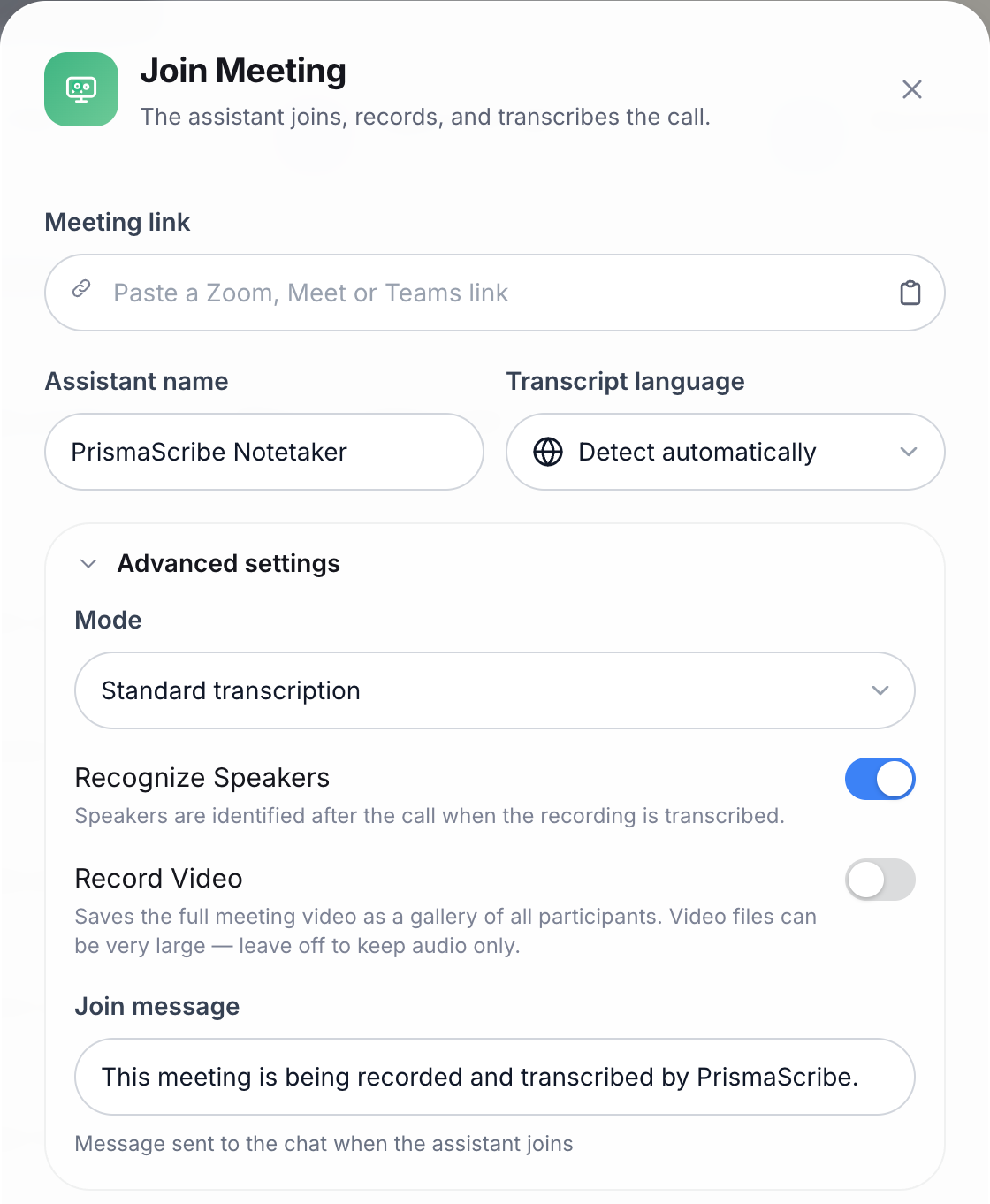
- In the PrismaScribe dashboard, click New Transcription, then Online Meeting. The Join Meeting window opens.
- Paste the meet.google.com link under Meeting link.
- Leave Transcript language on Detect automatically, or pick the language.
- Click Join & Record.
The bot asks to join under the name PrismaScribe Notetaker (you can change it), and someone in the call admits it, as they would any guest. It posts a line in the chat saying the meeting is being recorded and transcribed. From then on you can close the page: it keeps recording and leaves about a minute after everyone else has gone. To end it sooner, click Stop Recording on the meeting's page in the dashboard. Whatever it recorded up to then is still transcribed.
Three things to know before you rely on it:
- It records sound only unless you switch on Record Video under Advanced settings.
- It joins as a guest. A meeting that admits only signed-in users, or only one organization, keeps it out.
- Meeting time is its own monthly allowance: 1 hour on Starter, 3 on Premium and 6 on Pro. When it runs out, the bot leaves the call, so a 90-minute meeting doesn't fit Starter's hour. The pricing page has the details.
The Google Meet transcription page shows what the bot's transcript looks like.
Turn the recording into a transcript
A recording answers "what exactly did she say about the deadline?" only if you scrub through an hour of video. A transcript answers it with a search.
Meet can write its own transcript on some Workspace plans (Business Standard and up, Enterprise, some Education plans and Workspace Individual), if someone starts it during the call. Google's transcript page (checked November 18, 2026) lists eight languages for it. If nobody started it, or your plan or language isn't covered, make the transcript from the recording.
If the bot recorded the call, there is nothing to upload. The app saves the recording and its transcript to All Files in your library, and tells you this usually takes a few minutes.
If you have a file, from Drive or from your screen recorder:
- Download the recording from Drive. A Drive link can't be pasted in; it has to be the file.
- In PrismaScribe, click New Transcription, then Transcribe Files, and drop the video in. There is nothing to convert first: the video file uploads as it is.
- Open Advanced Settings and check that Recognize Speakers is ticked. If you know how many people spoke, type the number under How many speakers?
- Press Transcribe. About an hour of audio takes about 2 minutes, and you can close the page while it runs.
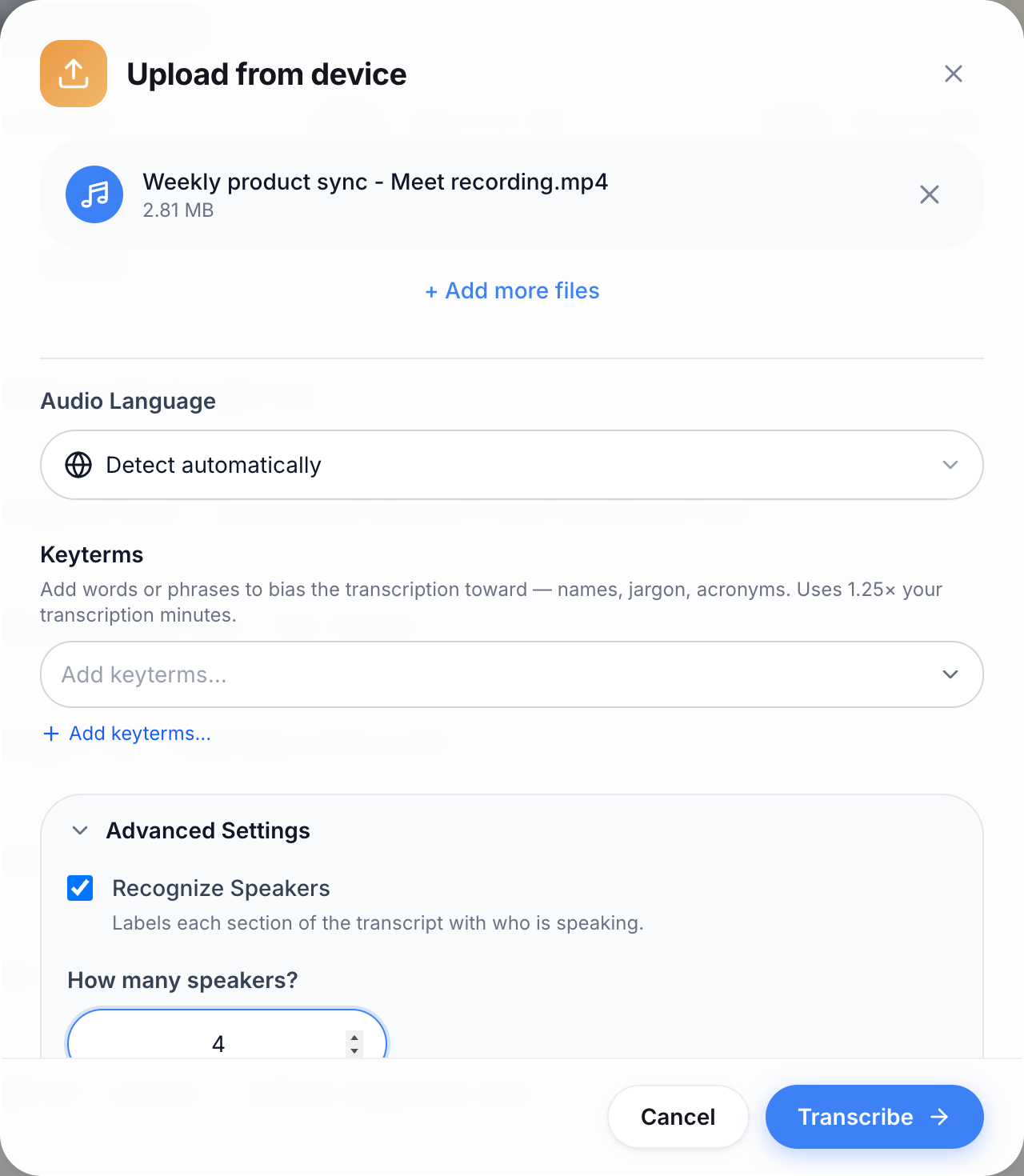
Here is how that went on a test run. The file was Weekly product sync - Meet recording.mp4, a 2:58 sample video we made for the test and set up like a Meet recording, with four invented colleagues (Anna, Ben, Sofia and Lukas) planning a release. In the Upload from device window we left Audio Language on Detect automatically, kept Recognize Speakers ticked and typed 4 under How many speakers?
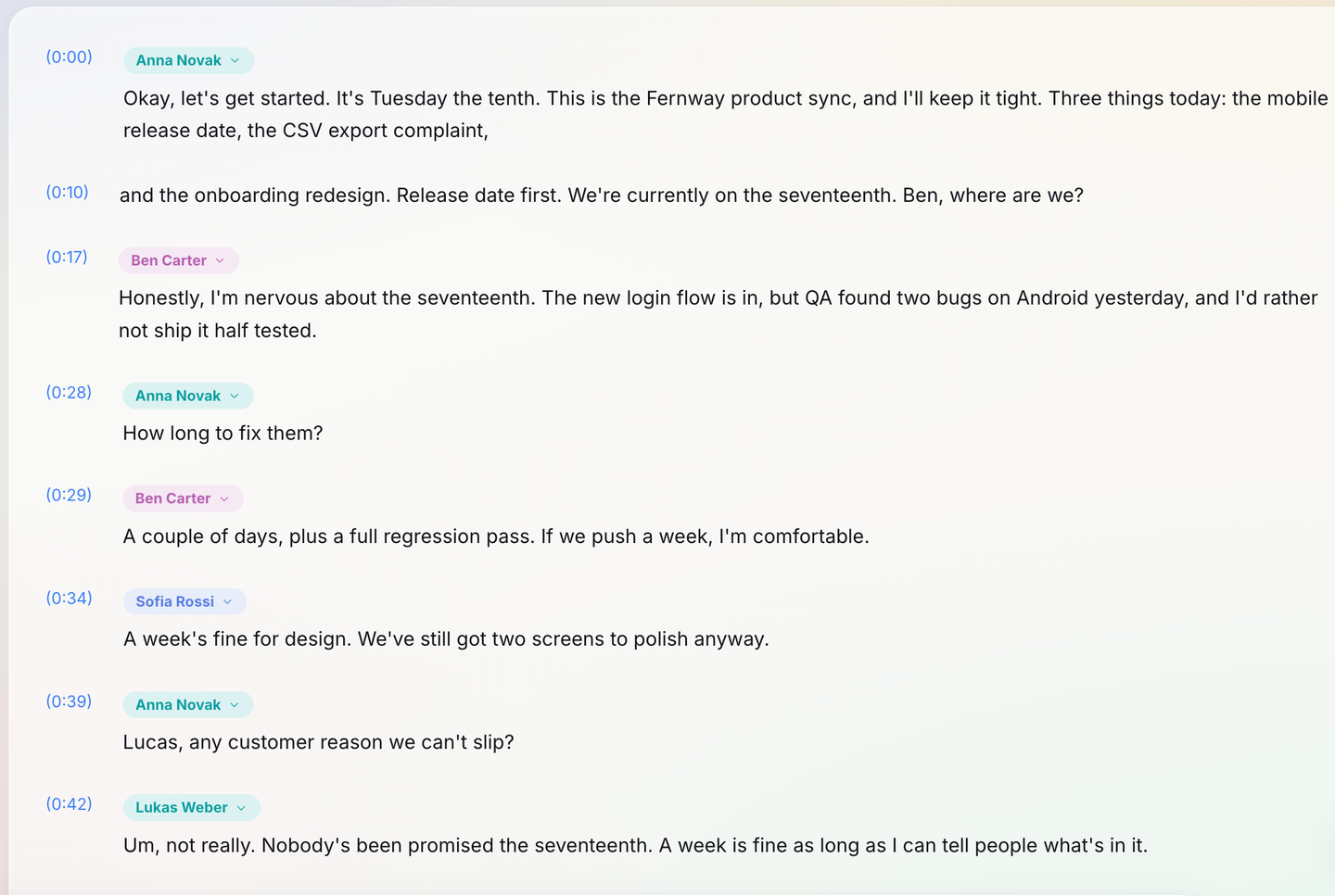
The transcript was ready in about half a minute, with four speakers labelled Speaker 1 to Speaker 4. Ben's first turn, at 0:17, came back word for word:
Honestly, I'm nervous about the seventeenth. The new login flow is in, but QA found two bugs on Android yesterday, and I'd rather not ship it half tested.
The one slip was a name heard only aloud: Lukas came out as Lucas. The run used 3 minutes of the month's transcription time, measured on the account's usage counter, which went from 36 to 39 minutes.
The transcript comes back with a timestamp on each paragraph and labels such as Speaker 1 and Speaker 2. Click a label, choose the pencil next to that speaker, type the person's name once, and every paragraph of theirs changes. From there you can search it, export it as Word, PDF, TXT, Markdown, SRT or VTT, or turn it into meeting minutes with decisions and action items.
On the Free plan a file can be up to 15 minutes long and 500 MB, which suits a short stand-up. Paid plans take meetings of five hours or more.
Say names out loud in the first minute ("Ben, where are we on the release?"). It makes naming the speakers in the transcript a ten-second job.
Before you press record
- Tell people. Meet's notice covers only Meet's own recording. A screen recorder shows nothing to the others, so say it yourself at the start. Rules on recording calls differ by country and state, and asking first is the safe habit everywhere.
- Check who the organizer is. Their Drive gets the file. If that's a colleague who is on holiday next week, agree on sharing before the call.
- Record sound you can use. One person talking at a time beats everything. A headset helps when Meet or the bot does the recording. With a screen recorder on an older Mac it hides the other side, as described above.
If your team also meets elsewhere, the rules about who can record are different again for Zoom meetings and Teams meetings. The part after the call stays the same: upload the file, name the speakers once, and search the text instead of scrubbing through the video.
Frequently asked questions
Why can't I record my Google Meet?
Usually for one of three reasons: the meeting's organizer is on a plan without recording (a free personal Google account or Business Starter), an administrator has turned recording off, or you're a guest from outside the host's organization. On an iPhone you won't see the option either, since Google says a recording can only be started on a computer or an Android device.
Can I record a Google Meet with a free Google account?
Not with Meet's own Record button, which needs one of the paid plans Google lists. You can still record your screen with your computer's recorder, or send a meeting bot to the call with its link. Tell the other participants first.
Does Google Meet tell people when you record?
Yes, for its own recording: everyone in the call is notified when it starts and stops. A screen recorder on your computer runs outside Meet, so Meet shows the others nothing, and it's on you to tell people.
How long can a Google Meet recording be?
Up to 8 hours; Google stops the recording then. To transcribe a long recording afterwards, check the file length your plan takes: 15 minutes per file on PrismaScribe's Free plan, five hours on Starter and Premium.
Can I edit a Google Meet recording?
Meet has no editor. Download the video from Drive and trim it in any video editor. If what you need is the words, a transcript is quicker to edit than video: fix the text, then export it as a document.
Can I get a transcript of a Google Meet recording for free?
Yes, for short recordings. PrismaScribe's Free plan includes 30 minutes of transcription a month, up to 15 minutes a day, with files up to 15 minutes and 500 MB. Speaker labels and all six export formats are included. The meeting bot and meeting minutes are on paid plans.


Turn hours of audio into searchable text
Upload a file or paste a link. Speaker labels, translations, and six export formats included.