
How to take meeting minutes from a recording: steps and an example
Turn a recorded meeting into minutes: rename the speakers, find the decisions and actions, then check owners and dates before you send them.

Armin
Published 10 min read

Key takeaways
- Minutes keep decisions, actions and open questions, not every word.
- Record the meeting yourself, or send the meeting bot to a Zoom, Meet or Teams call.
- Rename the speakers first, because PrismaScribe's minutes draft uses those names as owners.
- Leave an owner or a due date empty when nobody named one.
- Turn "Thursday" into a calendar date and check every owner against the audio before you send.
Taking minutes gets easier when you type less during the meeting. Record it, note who came, and write the minutes afterwards from what people actually said. This guide shows how to take meeting minutes from a recording, step by step, with a short test meeting we ran through PrismaScribe, the minutes it drafted and the version we'd send.
Minutes are not a transcript
A transcript records what was said, tangents included. Minutes keep the outcomes. Send the transcript to someone who skipped the meeting and they still have to dig the decisions out themselves.
So decide what the minutes will hold before you read a line. For a typical team meeting, five parts are enough:
- The date, the attendees and anyone who sent apologies.
- The agenda items, in the order they came up.
- Decisions, one line each, with any conditions.
- Action items, each with one owner and a due date, left empty when nobody named one.
- Open questions that nobody settled.
Leave out side conversations and jokes, and keep the debate to a line where it explains a decision. Formal meetings, such as a board meeting, usually need more, like motions and votes, so check your organisation's rules before you drop anything.
Record the meeting or send the bot
There are two routes.
For a call on Zoom, Google Meet or Microsoft Teams, you can send the meeting bot. Paste the meeting link on the web dashboard or in the iPhone app and the bot joins as a participant; depending on the meeting's settings, the host may need to admit it. It doesn't read your calendar, so you paste a link for each meeting. Standard transcription, the default, works after the call and is the more accurate mode.
The other route works on every plan, Free included. For an in-person meeting, record it in your browser, on your iPhone or on your Apple Watch. For an online call, upload the recording your meeting tool saved; our guide on how to transcribe a Zoom meeting covers local and cloud recordings.
Good to know: the meeting bot and the minutes draft are on paid plans, and the bot has its own allowance of 1, 3 or 6 meeting hours a month on Starter, Premium and Pro, which top-up hours don't add to. Free allows 15 minutes per file, 15 a day and 30 a month, so it suits short meetings. Our meeting transcription page compares both routes.
How to take meeting minutes from the transcript, step by step
- Rename the speakers. "Speaker 1" can't own an action item. Click a speaker's name, use Rename speaker (the pencil) and type the real name; with All paragraphs selected, the default, every line from that voice changes. The minutes draft reads these names too.
- Read for decisions. Use Find in transcript for the words people use when they settle something, such as "agreed", "decided" or "let's go with", and step through the matches. Click a word to move the player to that moment and listen before you write it down.
- Pull out the actions. Search for "will" and "can you", and write each task someone took on as a line that starts with a verb. A suggestion nobody agreed to goes under open questions instead.
- Fill in the header. Check attendance against the meeting record. An invite shows who was asked, not who came, and someone who stayed silent won't appear as a speaker.
- List the open questions. Anything raised and left hanging gets its own line so it doesn't vanish.
- Trim. Cut the story around each point down to a sentence.
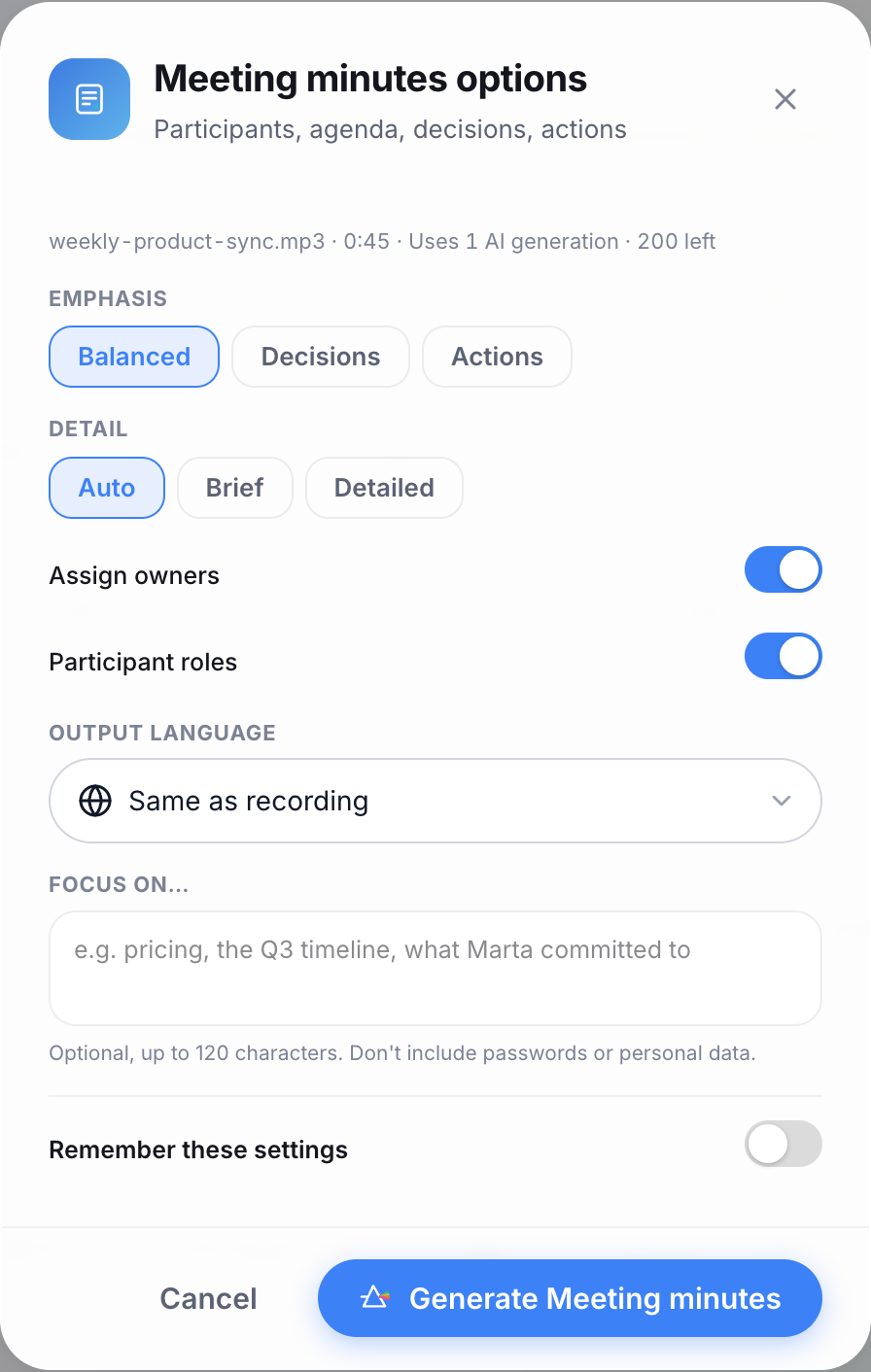
PrismaScribe can also draft the minutes for you. On the web, open AI Tools on the transcript and choose Meeting minutes; in the iPhone app, it's Generate AI Content, then Meeting Minutes. An options dialog comes first:
- Emphasis: Balanced, Decisions or Actions. Pick Actions for a stand-up.
- Detail: Auto, Brief or Detailed.
- Assign owners and Participant roles: both on by default.
- Output language: English minutes from a meeting in another language, for example.
- Focus on…: an optional line, such as one agenda item.
Paste a link, get a searchable transcript
Free plan includes 30 minutes of transcription every month. No credit card.
The draft uses one AI generation from your monthly pool (30 on Starter) and has four sections: Participants, Agenda, Decisions and Action items, each action with an owner and a due date where one was said. On the web you correct it in place: edit a line, add or remove a participant, decision or action item, change an owner or a due date. It has no section for open questions, so add those yourself, and check every owner and date it filled in.
A worked example: a three-person product meeting
To test this, we made a 45-second weekly product sync with three computer voices playing Priya, Tom and Elena, all invented. We uploaded it with Recognize Speakers on, How many speakers? set to 3 because we knew the head count, and filler words kept (No verbatim off). The transcript was ready about 12 seconds after we clicked Transcribe and used one minute of the allowance. All nine turns went to the right person and every word matched what was said, which is the best case: clean audio from computer voices, read from a script. After renaming the speakers, it read:
- Priya (0:00): Okay, let's start the weekly product sync. First, the onboarding checklist. Tom, where are we?
- Tom (0:06): The design is done. I'd like to ship it to all new users next week instead of running another test.
- Elena (0:13): Agreed. The test results were clear enough.
- Priya (0:17): Good. That's decided. The checklist ships to everyone next week. Second, the pricing page. Elena?
- Elena (0:24): I think we should show yearly prices first.
- Priya (0:27): Fine. Yearly prices first. Now actions. Tom will send the release notes draft by Thursday.
- Tom (0:33): Yes, Thursday works.
- Priya (0:36): Elena will update the pricing page copy by Friday, and someone needs to check the help articles that mention the old checklist.
- Elena (0:43): Good point. We'll find someone (no full stop in the transcript: the clip ends there)
Done by hand, steps 2 and 3 land on the same lines: "Agreed" at 0:13 and "That's decided" at 0:17 for the first decision, "Fine" at 0:27 for the second, and "will" at 0:27 and 0:36 for the actions.
We then generated Meeting minutes with the default options. They were ready about 3 seconds later and came out like this:
- Participants: Priya, Tom, Elena.
- Agenda: Weekly product sync to discuss the onboarding checklist rollout, pricing page updates, and task assignments.
- Decisions: The onboarding checklist will ship to all new users next week. The pricing page will display yearly prices first.
- Action items: Send the release notes draft (Tom, due Thursday). Update the pricing page copy (Elena, due Friday). Check help articles that mention the old checklist (no owner, no due date).
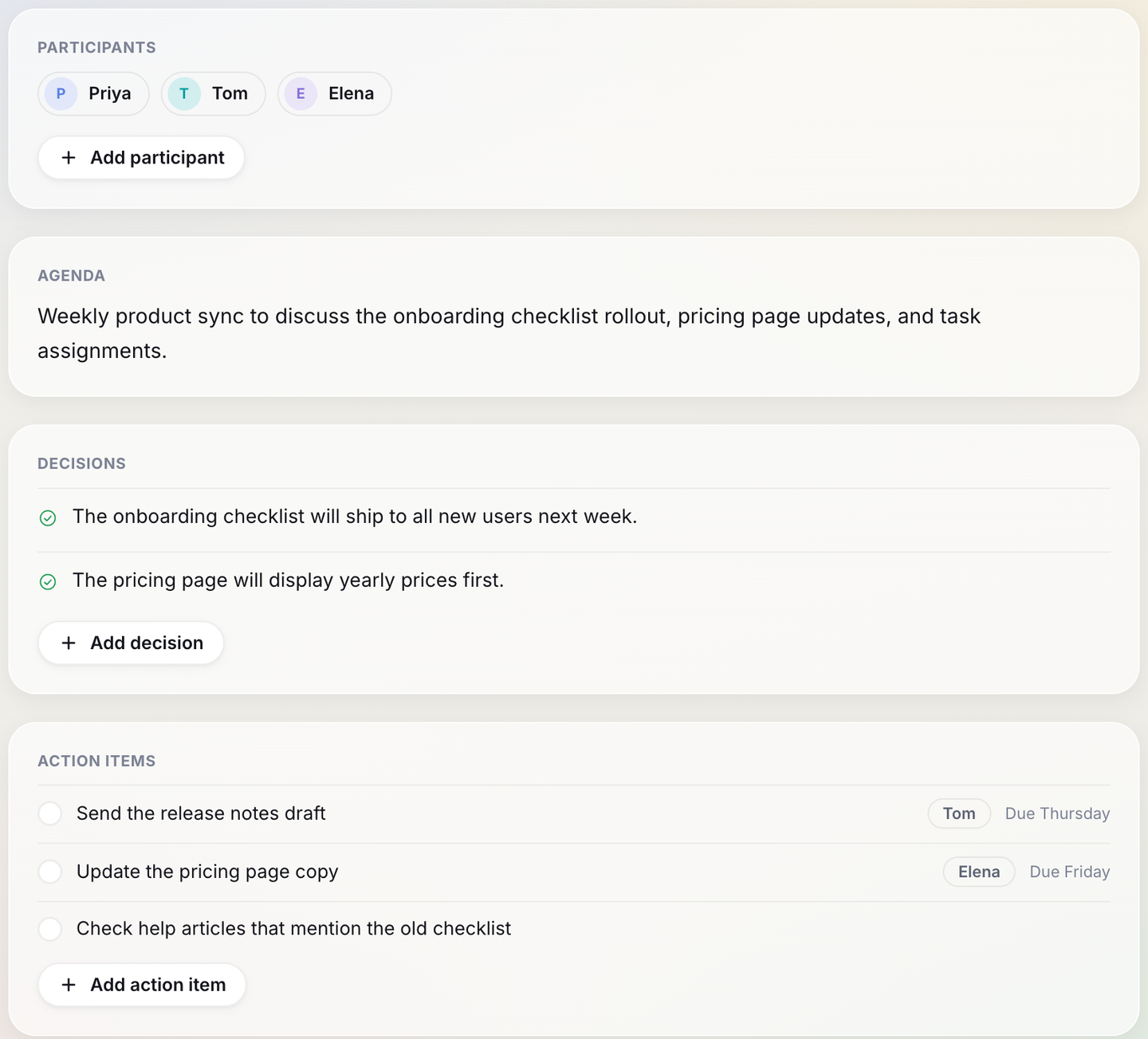
On a clean, scripted meeting it did what you'd want. The help-article check kept no owner and no date, because nobody took it, and the owners on the other two are the names we gave the speakers. With Participant roles on it added no roles, since nobody said theirs. The pricing decision is worth a listen: Elena only suggested it, and it counts because Priya confirmed it at 0:27 with "Fine. Yearly prices first." The Agenda came back as one summary sentence rather than a list of items, so rewrite it as the two topics.
If the meeting was on Monday 9 November, the version to send reads:
- Weekly product sync, Monday 9 November. Attendees: Priya, Tom, Elena.
- Agenda: 1. Onboarding checklist. 2. Pricing page.
- Decisions: The onboarding checklist ships to all new users next week, without another test. The pricing page shows yearly prices first.
- Actions: Tom sends the release notes draft by Thursday 12 November. Elena updates the pricing page copy by Friday 13 November.
- Open questions: Who checks the help articles that mention the old checklist?
Check the minutes before they go out
Check them in this order, whether you wrote them or started from the draft:
- Owners and dates. Click each one in the transcript and listen. These are the lines people act on.
- Anything that sounded like a decision. "Maybe we should" and "let's go with" are different things.
- Conditions. If a decision had an "if", the minutes need it too, along with any fallback.
- Relative dates. "Wednesday" or "next Friday" needs a calendar date before you send the actions.
- Names and numbers. A misheard name or figure in the minutes outlives the meeting.
When two people remember a decision differently, find the line in the transcript and play them the clip. It settles the argument faster than anyone's memory.
To send them, copy the minutes from their page or share them by link, which shares the minutes without the recording. Ask attendees for corrections by a set time, then send the final version.
Recording consent and who sees what
Tell people before you record, and say it out loud. When the bot joins, it posts "This meeting is being recorded and transcribed by PrismaScribe." in the call's chat, and you can change that message, but a chat line is easy to miss. If people from outside your company will be on the call, mention the recording in the invite too. Rules on recording differ by country, so check yours.
Also decide who gets the recording and who only gets the minutes. Often the minutes are all someone needs, so keep the audio and the transcript where only the people running the meeting can open them.
Keep the minutes where people can find them
The library search matches file names, not the words inside, so name each recording with the date and the meeting title. Bot recordings arrive named with the word "Meeting" and the date and time, so add the title when you rename them. Folders and tags work on every plan too.
If you can influence how the meeting itself runs, our guide to making meeting transcripts easier to use covers introductions, turn-taking and the phrases that make decisions easy to spot.
Take your next recorded meeting, under 15 minutes if you're on Free, rename the speakers and write the minutes from the transcript. Then play each action item back against the audio: that's where you'll see what your first draft guessed.
Frequently asked questions
Can I take minutes from a recording on the Free plan?
Yes, by hand. Upload or record a meeting of up to 15 minutes, rename the speakers and follow the six steps above; the minutes draft and the meeting bot are on paid plans. Free's three monthly AI generations can make a Summary instead, which pulls out key points, decisions and next steps but isn't the structured minutes with owners and due dates.
What happens if your meeting hours run out during a call?
The bot stays about five minutes after your meeting hours run out, then leaves the call, and everything recorded up to then is transcribed as usual. On the web, the join form warns you before you start when little time is left. Top-up hours don't add meeting time, so for a long meeting near the end of your allowance, record it yourself and upload the file instead.
Can the meeting bot join a call on its own?
No. You paste the link for each meeting. From the web, the bot joins as "PrismaScribe Notetaker" unless you rename it, and in the join form you can also change its chat message, turn on video recording or switch speaker recognition off, which is on by default. Only one bot runs at a time, and in standard mode the transcript is usually ready a few minutes after the call.
What if the meeting isn't in English?
PrismaScribe transcribes 99+ languages and, in standard mode, detects the language for you, including when people switch partway through. The bot's live mode doesn't detect it, so pick the language before it joins or it captions in English. To get minutes in another language than the meeting, set Output language in the minutes options.


Turn hours of audio into searchable text
Upload a file or paste a link. Speaker labels, translations, and six export formats included.