
How to transcribe a Zoom meeting, from recording to transcript
Three ways to get a Zoom meeting into text, and one run start to finish: a 49-second team check-in turned into a named transcript, a summary and a Word file.

Armin
Published 9 min read

Key takeaways
- Zoom has two built-in transcripts: one you save as a text file during the meeting, and one made from cloud recordings on paid Zoom accounts.
- For a named transcript, a summary and a Word file, record the meeting to your computer and upload the recording.
- Give the speaker count if you know it, then rename each speaker once and the names change everywhere.
- The Word export keeps speaker names and timestamps, ready to paste into a project doc.
- If you'd rather not record at all, a meeting bot can join the call and transcribe it.
How to transcribe a Zoom meeting depends on how it was captured: with Zoom's own transcript switched on, recorded to Zoom's cloud, recorded to your computer, or not recorded at all. This guide covers each route, then walks through one real run: a short team check-in, uploaded to PrismaScribe, with the settings we chose, the transcript that came back and the Word file we exported.
Four ways to get a Zoom meeting into text
Which route fits depends on your Zoom plan and on whether a recording exists. Everything we say about Zoom itself comes from Zoom's help pages, checked on October 28, 2026.
- Zoom's in-meeting transcript. If meeting transcripts are enabled, the host clicks More, then Transcript, and text fills a panel beside the meeting as people speak. Participants can ask the host to start it. Save transcript at the bottom of the panel saves a .TXT file to the Zoom folder in your Documents folder.
- Zoom's cloud recording transcript. Zoom can transcribe meetings you record to the cloud. It needs a Pro, Business, Education or Enterprise account, with cloud recording and audio transcription switched on. The transcript arrives after the recording has processed, as a separate VTT file (the timed text format used for captions), and you view and edit it, speaker names included, in the Zoom web portal.
- A local recording, transcribed elsewhere. Zoom's computer recording works on free and paid accounts, in the desktop app for Windows, macOS and Linux (not on phones or tablets). You get an audio or video file on your computer, which you upload to a transcription service. This is the route we show below.
- A meeting bot that joins the call. Instead of recording, you send a bot into the meeting and it transcribes the conversation. Useful when you aren't the host or don't want a recording on your laptop.
Zoom's built-in transcripts are a good start when the meeting is in one of the languages Zoom supports (its cloud transcript page lists 19). What they don't give you is a summary of decisions and action items, or a Word or PDF document laid out by speaker. Uploading the recording gets you those from the same file, in 99+ languages.
Before the meeting: get a recording you can use
A transcript is only as clear as the audio. A few things help more than any setting:
- Ask before you record. Zoom's computer recording needs the host's permission if you're a participant, and everyone in the call should know it's being recorded.
- Ask people to use a headset or earbuds. A laptop microphone in a quiet room is fine; a laptop microphone next to a kettle isn't.
- Have people say their names early. "Reed here, on photos" makes naming speakers later a ten-second job. We wrote more about this in how to make meeting transcripts easier to use.
- Keep cross-talk down. Two people talking at once is the hardest thing for any transcriber to separate.
How to transcribe a Zoom meeting recording, step by step
For the worked example we staged a 49-second Thursday check-in for a spring catalog launch, voiced by three synthetic speakers: Sam runs the meeting, Reed reports on product photos, Moira on the landing page. The file is an M4A audio file of 0.59 MB, and we ran it on a Free account.
1. Upload the file and open the advanced settings
In the dashboard, choose Transcribe Files and drop in the recording. Audio and video both work, so you can upload Zoom's video file or its audio file; the audio file is smaller and uploads faster.
Leave Audio Language on "Detect automatically" unless the meeting mixes languages in a way you want to control. Then open Advanced Settings:
- Recognize Speakers stays on. It labels each section of the transcript with who is speaking.
- How many speakers? We typed 3. You can leave it empty and it detects up to 32 speakers, but a correct hint helps when two voices sound alike.
- No verbatim we switched on. It removes filler words, false starts and repetitions, which is what most people want from meeting notes. Leave it off if you need every "um" kept.
Paste a link, get a searchable transcript
Free plan includes 30 minutes of transcription every month. No credit card.
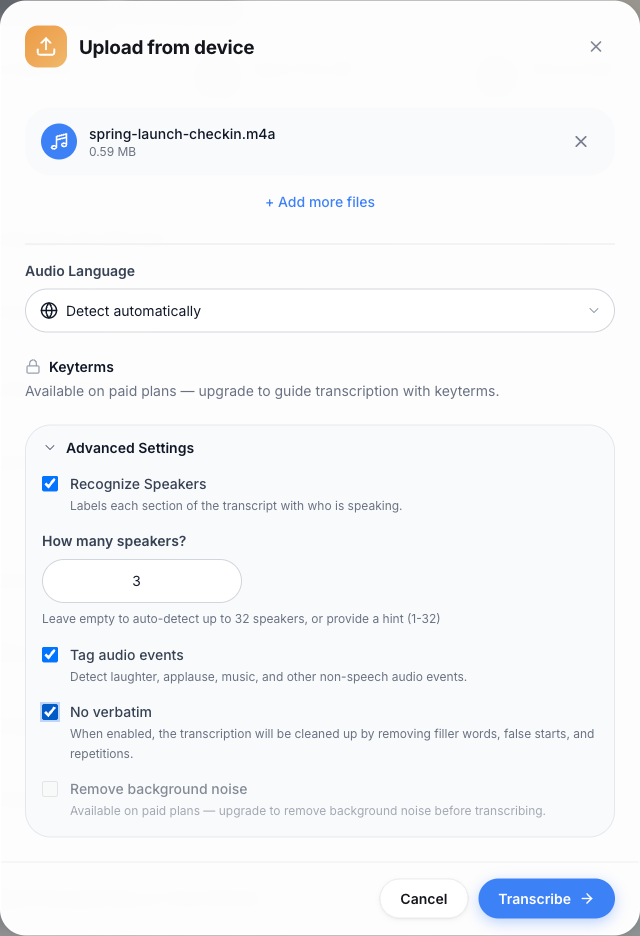
On paid plans the same dialog offers keyterms (your names and jargon, counted as 1.25× the file's minutes) and background noise removal (counted as 2×). Our file was clean, so we didn't need either.
2. Wait for the transcript
The dashboard showed "Transcribing · ~1 min left" and the transcript was ready about a minute later. Longer meetings take longer: roughly 2 minutes for an hour of audio. You can close the page and come back.
The transcript came back with three speakers, split at every change of voice, each paragraph timestamped. The run used one minute of the Free plan's 30 minutes a month.
3. Name the speakers
Speakers arrive as "Speaker 1", "Speaker 2" and "Speaker 3". Click a speaker label, then the pencil next to the name, type the real name and choose All paragraphs so it changes everywhere at once. "This paragraph" is there for the odd line that got the wrong label.
Here is what our transcript looked like after renaming:
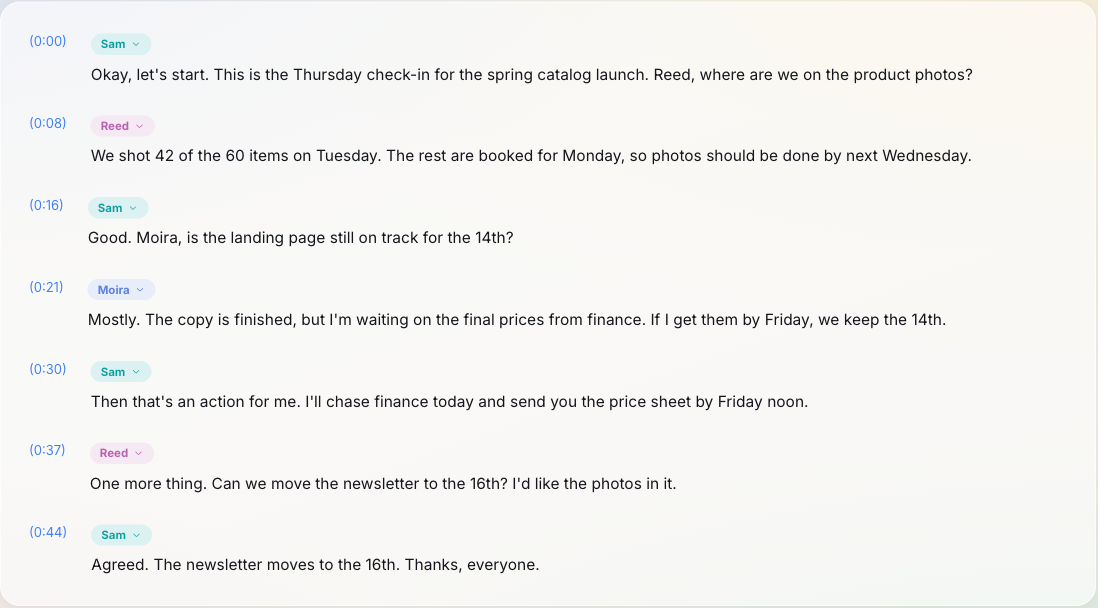
On this clean, staged audio every word was right, and numbers came out as digits: "We shot 42 of the 60 items on Tuesday", and "the fourteenth" became "the 14th". A real call with laptop microphones and people talking over each other will need more checking, which is the next step.
4. Check names, numbers and decisions
Skim the transcript once with the audio. Click any timestamp to jump to that moment. The things worth checking are the ones that cause trouble later: people's names, product names, figures and dates. If you only have a few minutes, read the decisions and the action items, and leave the small talk.
Turn the transcript into meeting notes
Most people don't want to reread a whole meeting. Under AI Tools, choose Summary. The options let you pick a style (key points, an executive TL;DR, chronological or by theme), a length and a tone, and whether to attribute points to speakers. We kept "Key points" with speakers attributed. One summary uses one AI generation, the monthly allowance shared by summaries and the other AI outputs; the Free plan includes 3 a month.
Two of the five key points it wrote:
- "Sam committed to contacting the finance team to ensure the price sheet is delivered to Moira by Friday at noon."
- "Reed requested to reschedule the newsletter launch to the 16th to ensure the new product photos can be included in the content."
That is the action item and the decision from the call, with the right person attached to each. Paid plans also offer Action items and Meeting minutes in the same menu, which lay out decisions and owners in a fixed format. You can translate the transcript too if part of the team reads another language; translation has its own monthly character allowance.
Export the transcript
Choose Export, pick a format and decide whether to include speaker names and timestamps. There are six formats: TXT and Markdown for plain text, SRT and VTT for subtitles if you're captioning a recorded webinar, and PDF and DOCX for documents.
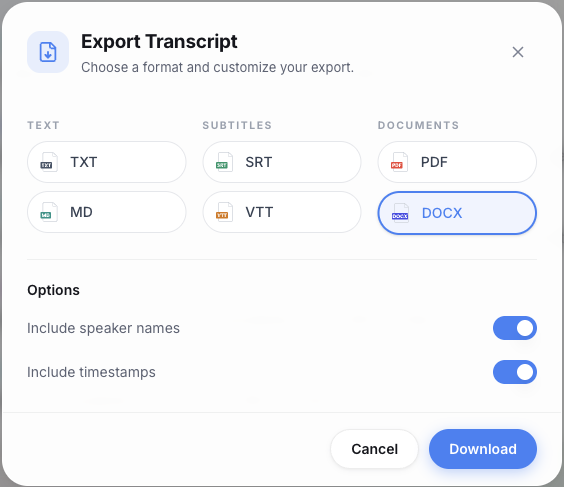
Our Word file opens with the file name, the language and the length, then each speaker's name above their lines, every line starting with its timestamp: "[0:30] Then that's an action for me. I'll chase finance today and send you the price sheet by Friday noon." That is a format you can paste into a project doc or attach to the calendar invite.
Transcribe a Zoom meeting without recording it yourself
If you don't host the call, or you'd rather not keep a recording, use the meeting bot. In the dashboard choose Online Meeting, paste the Zoom link into Meeting link, and the bot joins the call. The same works for Google Meet and Microsoft Teams. You paste the link each time; there's no calendar auto-join.
Pick one of two modes. Standard transcription is the default: the transcript is made after the call and is the most accurate. Live transcription shows text on screen during the call, but it's less accurate and doesn't detect the language for you. Once the call ends you get the same transcript page as an upload, so naming speakers, the summary and the exports work the same way.
The bot is on the paid plans, with its own monthly meeting hours: 1 on Starter, 3 on Premium and 6 on Pro, separate from your transcription hours. The details are on the meeting transcription page and the pricing page.
Which route to choose
If your company pays for Zoom and a caption file is enough, Zoom's cloud transcript is already there. If you need named speakers, a summary or a Word document, record the meeting to your computer and upload it; on the Free plan that covers meetings up to 15 minutes per file, and paid plans take recordings up to 5 hours or more. If you can't record, send the bot. Whichever you pick, name the speakers before you share the transcript. It takes a minute and saves everyone reading it from guessing who promised what.
Frequently asked questions
Can I transcribe a Zoom meeting if I'm not the host?
Yes. A participant can make a computer recording if the host gives permission, then upload it. Without a recording, a paid PrismaScribe plan can send the meeting bot into the call from the meeting link; depending on the meeting's settings, the host may need to let it in.
Can I transcribe a Zoom meeting that was already recorded?
Yes. Upload the recording, video or audio, from your computer. If it's a cloud recording, download it from the Zoom web portal first, then upload it like any other file.
Is there a free way to transcribe a Zoom meeting?
Zoom's computer recording is available on free Zoom accounts, and PrismaScribe's Free plan includes 30 minutes of transcription a month, with files up to 15 minutes each and 15 minutes a day. That covers short calls; longer meetings need a paid plan or top-up hours.
Can I get a Zoom transcript without recording the meeting?
Yes, two ways. Zoom's in-meeting transcript, if your account has meeting transcripts enabled, can be saved as a text file before the meeting ends without any recording. Or a paid PrismaScribe plan can send the meeting bot, which transcribes the call and gives you the transcript page afterwards with no recording on your computer.
Where does Zoom save a transcript on my computer?
A transcript you save from Zoom's Transcript panel goes to the Zoom folder inside your Documents folder, on Windows, Mac and Linux. Cloud recording transcripts stay in the Zoom web portal under Recordings & Transcripts, where you can view, edit or download them.


Turn hours of audio into searchable text
Upload a file or paste a link. Speaker labels, translations, and six export formats included.