
What is an SRT file? Format, SRT vs VTT and when to use each
An SRT file is plain text: numbered captions, each with a start time, an end time and the words. See a real export, compare it with VTT, pick the right one.

Armin
Published 10 min read

Key takeaways
- An SRT file is plain text: a cue number, a timing line, the caption text and a blank line, repeated for every caption.
- VTT holds the same captions but opens with WEBVTT and puts a full stop, not a comma, before the milliseconds.
- A web page's own video player reads only VTT; many desktop players and video editors take SRT.
- Turning an SRT into a VTT takes two edits: add a WEBVTT line, and change the commas in the timing lines to full stops.
- A caption file is easy to break by saving it from a word processor or with a hidden .txt on the end of its name.
What is an SRT file? It's a plain-text file that lists a video's captions one after another, each with a number, a start time, an end time and the words to show. A VTT file does the same job with a different first line and a slightly different way of writing time. Below you'll see both, exported from the same scripted test clip, how to choose between them, and the mistakes that stop a caption file from loading.
What is an SRT file?
SRT comes from SubRip, an old program that copied subtitles off DVDs into text. The file holds text and nothing else: no audio, no video, no fonts. A player reads it alongside the video and puts each caption on screen at the time written next to it.
Here's the start of a real one. We recorded a scripted 41-second webinar opening with a synthetic voice (the presenter, Dana Whitfield, is made up), transcribed it in PrismaScribe with the default settings, and exported it as SRT with speaker names off. The transcript took about 15 seconds and used 1 minute of the allowance. Opened as plain text, the file begins like this:
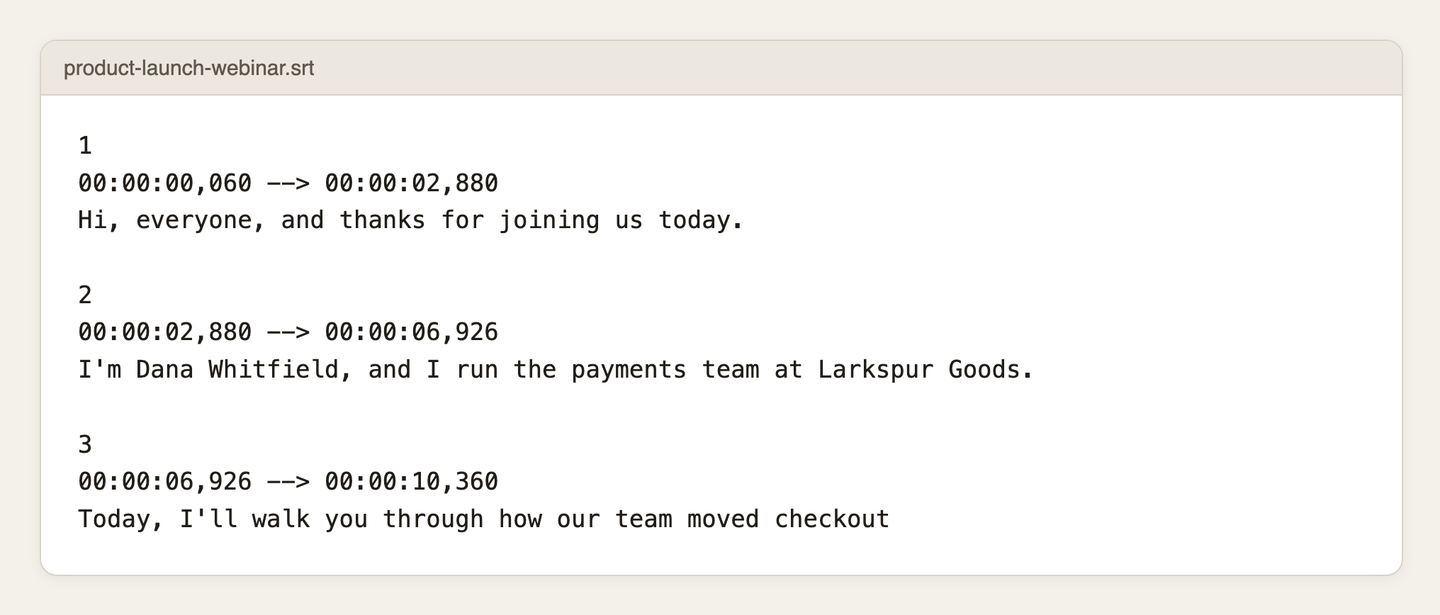
Each caption, which the format calls a cue, has the same four parts:
- A number, counting up from 1.
- A timing line: the start time, an arrow made of two hyphens and a greater-than sign (
-->), then the end time. Times read hours, minutes, seconds, then a comma and thousandths of a second. - The caption text. The format allows any number of lines; two is a common convention for readability, not a rule. PrismaScribe writes every caption as a single line, and most players wrap it if it's too wide for the screen. Many players also understand a few formatting tags in SRT, such as
<i>for italics,<b>for bold and<u>for underline. - A blank line, which marks the end of the cue.
Because it's plain text, any text editor will open it, and that's also the quickest way to find out why a file isn't working.
Reading a timing line
Take cue 1 from our file: 00:00:00,060 --> 00:00:02,880. The caption appears 60 thousandths of a second in and disappears at 2.88 seconds, so it's on screen for 2.82 seconds. Cue 2 starts at exactly 00:00:02,880, so the two follow each other with no gap.
The only gaps in our file came where one transcript paragraph ended and the next began: cue 3 ends at 00:00:10,360 and cue 4 starts at 00:00:10,440, a pause of 80 thousandths. If you ever need to nudge a caption by hand, those two timestamps are the only numbers you touch.
The same captions as a VTT file
VTT is short for WebVTT, the caption format the W3C, the body that sets web standards, defines for video on web pages. Here's the same transcript exported as VTT, with the same settings:
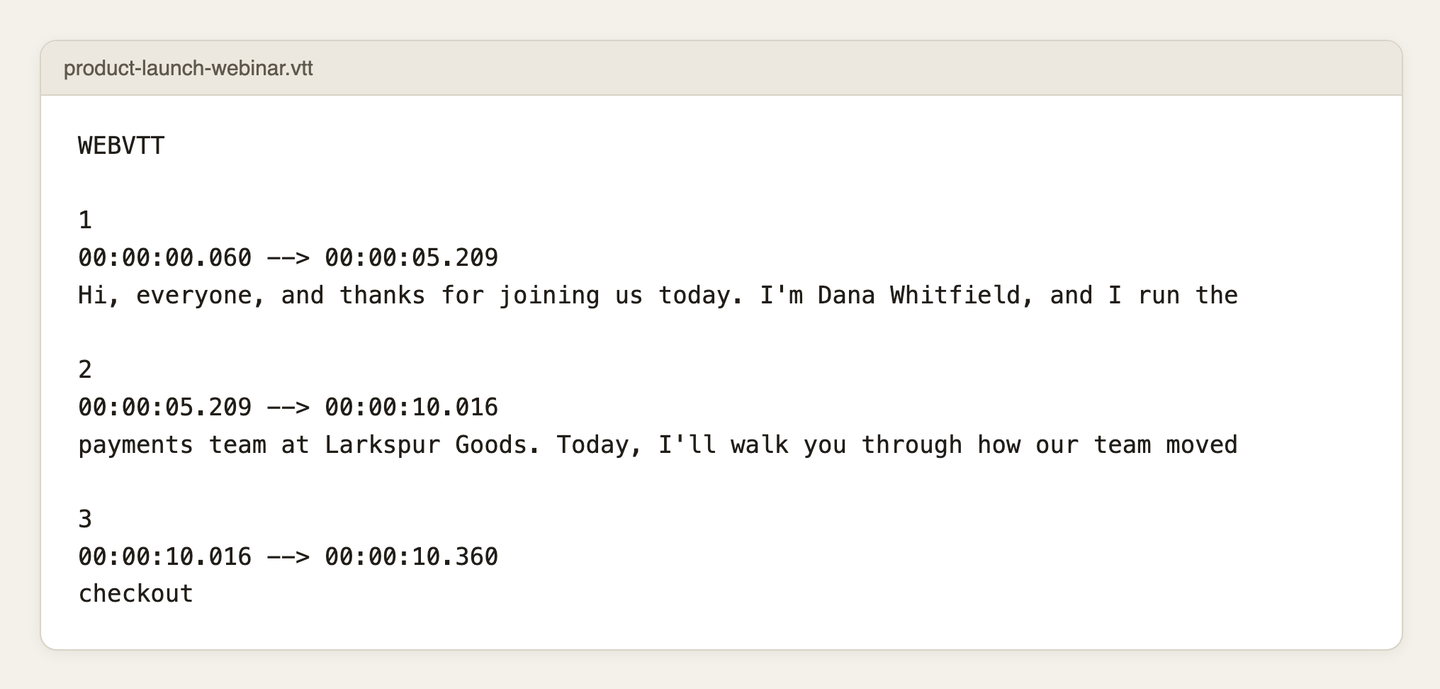
What changed:
- The first line. The file opens with the word WEBVTT and a blank line.
- The times. The thousandths of a second follow a full stop instead of a comma.
- The numbers stay. VTT treats cue numbers as optional labels, so a file with them is as valid as one without.
- The caption breaks. The VTT has 11 captions where the SRT has 12, and its third is the single word "checkout", on screen for about a third of a second. That's not the format; it's how PrismaScribe's two exports cut long paragraphs, explained in the settings section below.
The W3C specification has the full rules if you need them.
What VTT can hold that SRT can't
A VTT cue can carry settings after the timing line, such as align:start or line:0, that tell the player where to put the text. It can also carry a voice tag that names the speaker, like <v Dana>, plus styling rules for the whole file. SRT has only words, times and those few formatting tags.
That difference shows up when you switch speaker names on. In our test the speaker was renamed "Presenter". With "Include speaker names" switched on, the VTT's first caption read <v Presenter>Hi, everyone, and thanks for joining us today. I'm Dana Whitfield, and I run the, and every later caption started with the same tag. The SRT has no voice tag, so it wrote the name in square brackets as ordinary text, and only where a new paragraph began, even mid-sentence: [Presenter] onto a new payment service,. Because the brackets count toward the character limit, they also made the SRT one caption longer, 13 instead of 12.
Where SRT and VTT differ
- Header. A VTT file has to start with WEBVTT. An SRT file has no header and goes straight into cue 1.
- Time. SRT puts a comma before the thousandths of a second. VTT puts a full stop.
- Numbers. SRT numbers its cues. In VTT they're optional.
- Extras. VTT can carry positioning, voice tags and styling. SRT carries words, times and basic italic, bold and underline tags.
- Where they play. A web page's own video player (the HTML
<video>element, with captions attached through a<track>element) reads WebVTT only. SRT is older and simpler, and many desktop players and video editors accept it.
Paste a link, get a searchable transcript
Free plan includes 30 minutes of transcription every month. No credit card.
Which one to export
Look up where the video will live before you pick a format:
- Your own website's player: VTT.
- A video platform or learning platform: whatever its help page names under captions or subtitles. YouTube is covered in our guide to creating YouTube captions and subtitles.
- A desktop player such as VLC: SRT works; see the FAQ below for how to load it.
- A video editor that will burn the words into the picture: usually SRT, but check the editor's import options.
If the help page doesn't say, export both and try one. PrismaScribe offers SRT and VTT on every plan, from the web, so trying the other format only takes another export. Starting from an audio file, the MP3 to SRT page shows the route; for a video, the subtitle generator is the equivalent.
Both formats can also travel inside a video file: a Matroska (MKV) file can carry SRT tracks, and MP4 files and HLS streams (a common way of streaming video on the web) can carry WebVTT. Most upload sites still want the caption file separately, attached after the video is uploaded.
What the caption settings change
On the web, open a transcript and click Export, then pick SRT or VTT under Subtitles. Two kinds of options appear:
- Include speaker names, on by default when the transcript has speaker labels. In SRT the bracketed name counts toward the character limit. For a single speaker, switch it off.
- Subtitle settings, which you click to open: "Max characters per line" (40 to 200, default 84) and "Max segment duration" (3 to 15 seconds, default 7).
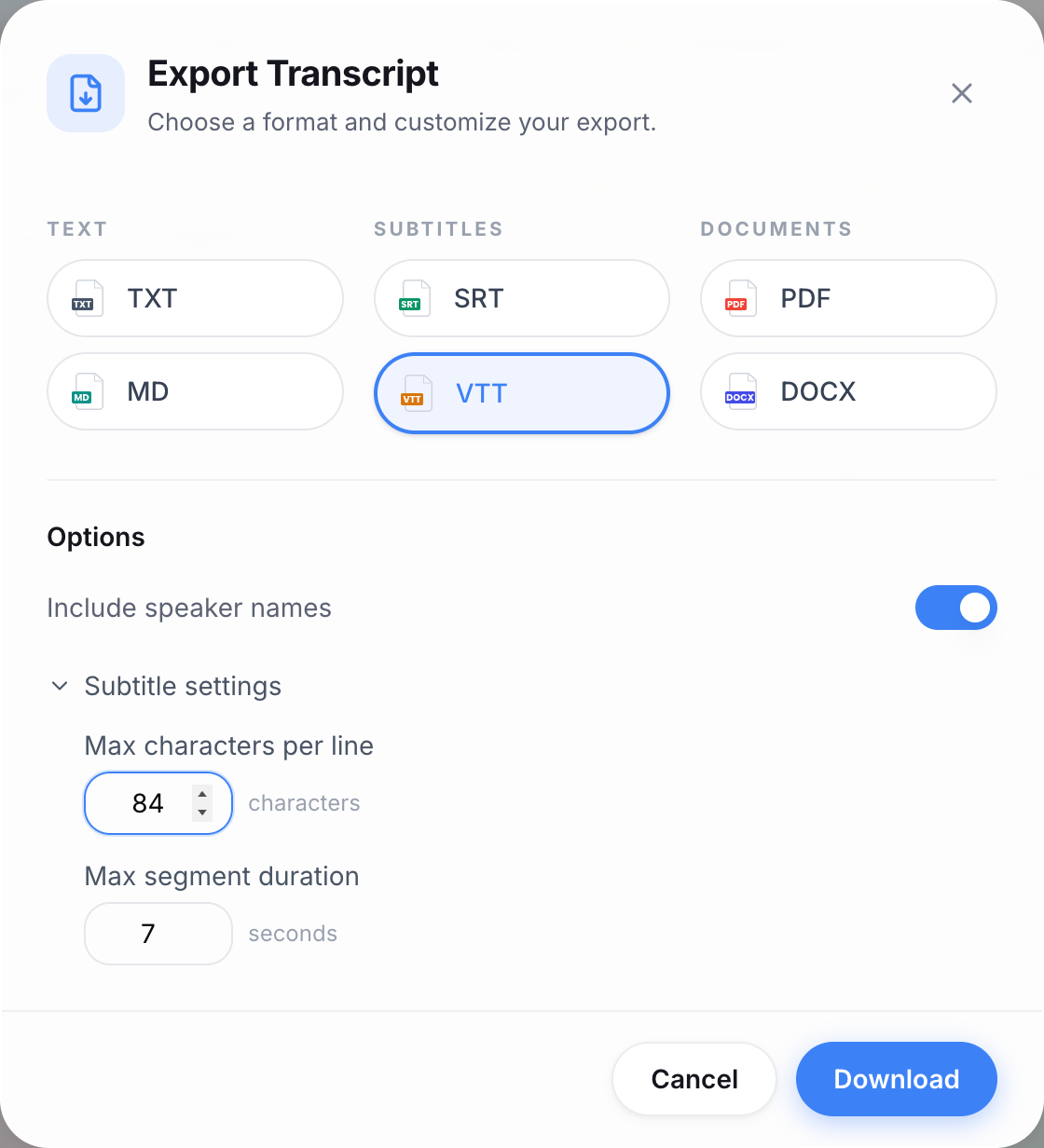
What those settings do in practice:
- Every caption is one line, so "Max characters per line" really caps the whole caption.
- A paragraph longer than the limit is cut into several numbered captions, and the paragraph's time is shared between them in proportion to their length. The SRT export cuts at a sentence end or comma when there's one far enough along, otherwise at the last space; the VTT export fills each caption word by word up to the limit.
- "Max segment duration" doesn't shorten a caption on its own in the current export. A paragraph within the character limit stays one caption for as long as it was spoken, however slowly.
- Captions never run across two paragraphs, so pressing Enter in the editor to split a long paragraph also starts a new caption there.
- The dialog remembers your last settings for each format in that browser.
On our clip, the default 84 gave 12 SRT captions and 42 gave 20, none longer than 40 characters. Both files had stubs, captions too short to read. Our transcript had started a new paragraph about every 10 seconds, mid-sentence, which left thirty-two percent. The as a caption of its own at 42. At 84, the last sentence came out one character over the limit, so the final caption was just go, on screen for about an eighth of a second. To fix them before you export:
- Join a paragraph that ends mid-sentence to the next one (Backspace at the start of the second), then press Enter where the sentence ends.
- For a stub at the character limit, press Enter at a nearby comma or full stop, or raise the limit slightly.
- Export again and look at the same spot.
Translations work differently. When you translate a video's transcript, each translation is exported from its own page, as SRT or VTT, with one caption per transcript paragraph and that paragraph's timing. Those files have no speaker names and no caption settings, so a long paragraph becomes one long caption. Do any joining and splitting before you translate: a translation made earlier loses its timed lines when the paragraph count changes, until you regenerate it.
Five ways a subtitle file goes wrong
- The wrong separator. A comma where a VTT file wants a full stop, or the other way round.
- No WEBVTT line. A VTT file without it isn't valid, and browsers reject it.
- No blank line between cues. Without it, the player can't tell where one caption ends.
- Saved in the wrong format. A word processor saves RTF or DOCX unless you tell it otherwise, and Notepad can add .txt to the name, leaving
intro.srt.txt, unless you set the file type to All files. Save as plain text and check the full file name. - The wrong text encoding. If accented letters turn into odd symbols, save the file again as UTF-8, which most editors offer in the Save dialog under Encoding.
Renaming a file doesn't convert it. An SRT renamed to .vtt still has commas in its times and no WEBVTT line.
Naming, attaching and testing
Give the caption file the same base name as the video, plus a language code if you have more than one language: intro.en.srt, intro.es.srt. Names like that keep files from drifting apart in a folder, and some desktop players load a caption file automatically when its name matches the video's.
Then test it where it will be watched:
- Upload the file where the video is published and switch captions on.
- Watch the first minute and check that accented letters and symbols appear properly.
- Check that captions don't cover anything important on screen.
- Do this in the player your viewers will use, not only in your own.
If you find a typo, you can edit the text in a plain-text editor and leave the timing line alone. The tidier route is to fix the line in PrismaScribe's web editor and export again: every new export is written from the corrected transcript. Translations made before the fix keep the old wording, so correct them in each translation as well.
Take your shortest recording, export it as SRT and as VTT, and open both side by side. Once you can see the comma, the full stop and the WEBVTT line for yourself, load the one your platform asks for.
Frequently asked questions
How do I open an SRT file?
Use any plain-text editor: Notepad on Windows, or TextEdit on a Mac. Double-clicking the file may open a video player instead, so right-click and choose Open With. Save it as plain text in UTF-8, and leave the timing lines exactly as they are.
How do I watch a video with an SRT file?
In a desktop player such as VLC, the easiest way is to give the SRT the same name as the video and keep both in one folder; VLC then loads it on its own. You can also add it while the video plays, from VLC's Subtitle menu. Online, the file has to be uploaded to the platform that hosts the video.
How do I convert an SRT file to VTT?
Add WEBVTT as the first line, followed by a blank line. Then, in every timing line, change the comma before the milliseconds to a full stop, and leave commas in the caption text alone. The cue numbers can stay. Save the result with a .vtt extension, in UTF-8. If the captions came from a PrismaScribe transcript, it's quicker to export the VTT from the same transcript.
Which PrismaScribe plans export SRT and VTT?
Every plan, Free included, from the web. The Free plan's limits apply to the recording you upload, not to the export: files up to 15 minutes and 500 MB, 15 minutes a day and 30 minutes a month.
Do I need a separate file for each language?
Yes. Each language is its own SRT or VTT file, attached to the same video. Translations come from the translation's own page in PrismaScribe, and translation has a monthly character allowance that depends on your plan: 20,000 characters on Free.


Turn hours of audio into searchable text
Upload a file or paste a link. Speaker labels, translations, and six export formats included.