
Add captions to recorded presentations: a workflow for slide decks
Upload a recorded talk, check the transcript against your slides, export an SRT or VTT file at a length that suits the slides, and test it where people watch.

Armin
Published 10 min read

Key takeaways
- Upload the recording as it is, or paste a YouTube, Vimeo or Loom link on the web and keep only the part you need.
- Check names, acronyms and figures against your slides; the transcript can't know how your deck spells them.
- For a solo talk, switch off "Include speaker names", or each paragraph's first caption starts with the speaker's name.
- Each caption is one line, so "Max characters per line" caps the whole caption. Lower it for busy slides.
- Read the exported file for one- or two-word captions before you publish; they flash past too fast to read.
A recorded presentation can be perfectly clear to the person who gave it and still lose part of the audience: someone watching with the sound off, someone hard of hearing, someone following in a second language. To add captions to recorded presentations, upload the recording, check the transcript against your slides, choose a caption length that suits the slides, export an SRT or VTT file and load it wherever the video lives. This guide walks through each step with a real test export.
Upload the recording as it is
Captions are timed text, so everything depends on knowing what was said and when. If your presentation is an MP4 or MOV from a screen recorder, upload it as it is: PrismaScribe accepts 16+ audio and video formats, and the MP4 to SRT page shows that route on its own. If a screen recording is too big to upload, export its audio as an MP3 and upload that instead; the captions still line up with the video as long as you trim neither file.
If the talk already lives on YouTube, Vimeo or Loom, paste the link on the web instead. For an imported link you can also set a start and end time, which helps when a recording opens with ten minutes of people waiting for the host: only the part you choose is transcribed and counted.
You don't have to watch it run. About an hour of audio takes about 2 minutes, and you can close the tab; you'll get an email when the transcript is ready.
How to add captions to recorded presentations, step by step
- Upload or import the recording. Drag in the file, or paste a link on the web.
- Check Advanced Settings before you start.
- "Recognize Speakers" is on by default. Under "How many speakers?" give a number if you know it, such as 3 for a panel, or leave it empty to let it detect them.
- "Tag audio events", also on by default, marks applause and laughter in the text, which belongs in accessibility captions.
- "No verbatim" drops filler words and false starts, which usually reads better on screen. It isn't offered for every language.
- Decide on the two extras, both on paid plans. Keyterms (custom vocabulary) takes product names and jargon before the run, at 1.25 times the file's minutes. "Remove background noise" helps a recording made in a noisy hall, at 2 times the minutes, for files up to 60 minutes and 500 MB. Both together count as 2.25 times.
- Review the transcript against the slides. The next section covers what to look for.
- Export the caption file. Choose SRT or VTT, then set the options described below.
- Load the file and test it in the player your viewers will actually use.
We tried this sequence on a scripted 41-second webinar opening: one presenter, read by a synthetic voice, uploaded as an MP3 from the web. We left Audio Language on "Detect automatically" (it found English), kept Recognize Speakers and Tag audio events on, left "How many speakers?" empty (it found the one voice), and used neither extra. The transcript was ready about 15 seconds after we clicked Transcribe and used 1 minute of the allowance, since a 41-second file counts as a full minute.
Review the transcript against your slides
The slides show how every product name, acronym and figure is spelled, and the transcript can only guess. Open the deck next to the editor and scan for company and product names, acronyms, numbers that appear on a slide, and any term from your field. With the audio playing, click a word to jump to that moment and confirm what was said, then correct it in the line. Changes save automatically, and every export includes them.
Our test had no slides, so we checked the transcript against the script instead, the same way you'd check it against a deck. Every word matched, including the presenter's name (Dana Whitfield, invented for the test), the company (Larkspur Goods), the acronym "API" and the figure, which came back in words as "thirty-two percent". A synthetic voice reading a script is the easiest audio there is, so expect more to fix in a recording made in a room. If your slide shows a figure in digits, decide which form the captions should use and make them match.
What did need attention was the paragraph breaks. The transcript starts a new paragraph roughly every 30 words, or when the speaker changes, whether or not a sentence has ended. Ours began at 0:00, 0:10, 0:21 and 0:32, and the first ended mid-sentence: "…how our team moved checkout". A caption never runs across two paragraphs, so each of those breaks is also a caption break. You don't need to fix every one in a long talk; fix the ones that leave a stub caption, covered in the next section.
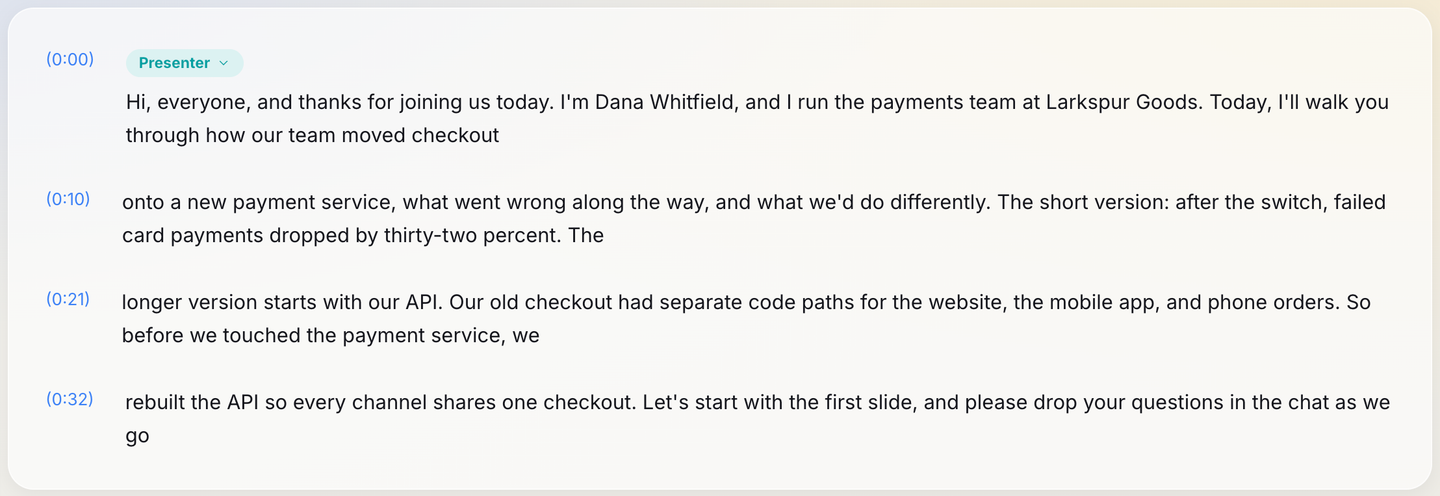
Next, name the speaker. A solo talk comes back as "Speaker 1":
- Click the "Speaker 1" label above a paragraph.
- Click the pencil next to the speaker's name, type the new name and press Enter.
- Leave it on "All paragraphs" so the name changes everywhere.
Paste a link, get a searchable transcript
Free plan includes 30 minutes of transcription every month. No credit card.
If a question from the room landed under the presenter's name, click the label on that paragraph and pick the right speaker, or choose "Add New Speaker".
The transcript covers what was said, not what's printed on the slides. If a slide shows a chart the speaker never describes, the captions won't mention it, which is a good reason to describe key visuals aloud when you record.
Set caption length for the slides
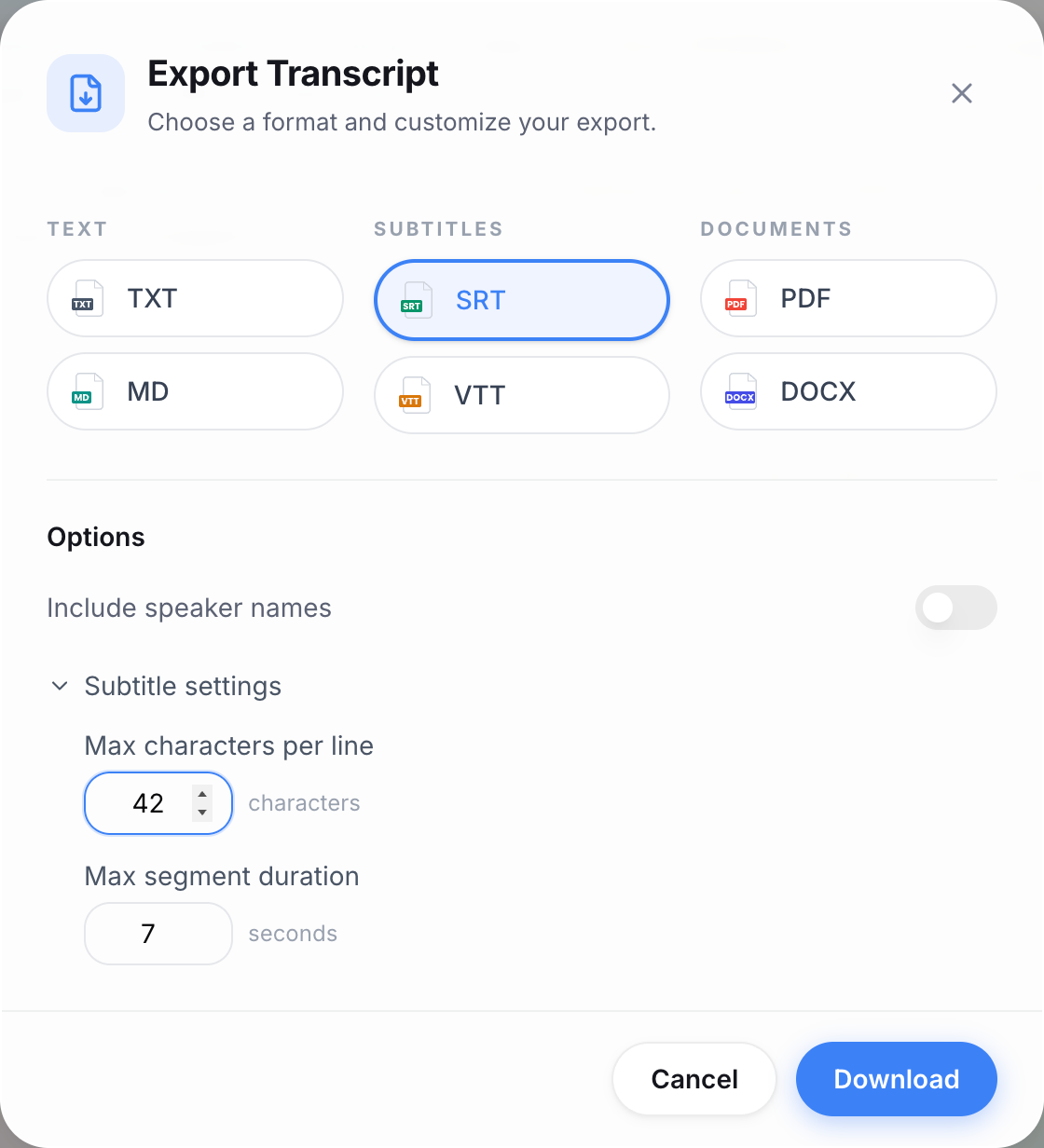
Captions share the screen with your content, and dense slides with small text, footers or logos need shorter captions. Open Export, pick SRT or VTT under Subtitles, and look at two things.
Include speaker names. It's on by default whenever the transcript has speaker labels. For a solo presenter, switch it off: otherwise the SRT starts each paragraph's first caption with the name in square brackets, such as "[Presenter]", and the VTT tags every caption with it. In SRT those brackets also count toward the character limit.
Subtitle settings (click to open):
- "Max characters per line" runs from 40 to 200 and starts at 84. Each caption is written as a single line, so this number caps the whole caption, and most players wrap it on screen if it's wider than the space. A paragraph longer than the limit becomes several numbered captions that share its time.
- "Max segment duration" runs from 3 to 15 seconds and starts at 7, but in the current export it doesn't shorten a caption on its own: the character limit does the splitting, and a short paragraph spoken slowly stays one caption for as long as it lasts.
The settings apply to the whole file, not slide by slide, so choose for the busiest slides in the talk. The dialog remembers your last values for each format in that browser.
In our test, 42 characters with speaker names off turned the 41 seconds into 20 captions, none longer than 40 characters, against 12 at the default 84. Here are the three around the acronym, which a busy slide would sit behind:
- Caption 12,
00:00:21,840 --> 00:00:24,119: longer version starts with our API. - Caption 13,
00:00:24,119 --> 00:00:26,723: Our old checkout had separate code paths - Caption 14,
00:00:26,723 --> 00:00:29,068: for the website, the mobile app, and
Caption 12 begins mid-sentence ("longer version…") because a paragraph started there, and the caption before it read only "thirty-two percent. The". That's the kind of stub to fix: join the two paragraphs (Backspace at the start of the second), press Enter where the sentence ends, and export again. Do it before you translate, because a translation made earlier loses its timed lines when the paragraph count changes. The shortest caption in the file, "the chat as we go", was on screen for just over a second.
Load the file and test it where people will watch
Which file you export depends on where the video will be shown:
- A video host or learning platform that accepts caption files: SRT, or VTT if the platform asks for it. Its help page will say where to attach the file.
- A web page with its own video player: VTT, which is what a page's built-in player reads.
- A desktop video player: many pick up an SRT saved next to the video with the same file name.
- A video played inside a slide deck: check your presentation software's help for whether it accepts a caption file and in which format.
- A social clip: upload the file if the platform takes one, or have your editor burn the words into the picture.
Then test in the exact player you'll use:
- Check that special characters display properly.
- Check that captions don't land on top of a slide footer.
- Check that the timing still holds if the video was trimmed after you exported.
- Ask a colleague to watch a minute with the sound off and tell you whether they could follow it.
For viewers following in another language, you can translate the transcript and export a caption file per language; the FAQ below covers what those files look like.
Check your plan before you queue the whole talk
The Free plan has three limits that apply together: 30 minutes a month, 15 minutes a day and 15 minutes per file, with files up to 500 MB. A 40-minute keynote doesn't fit: on Free, a longer file is transcribed as a preview of its first 15 minutes. That's plenty for a short clip or a test before you commit.
For longer talks you have two options. Starter is $7 a month for 5 hours of transcription, with files up to 5 hours and 2 GB. Top-up hours are the other route: you buy 1 to 75 hours, they never expire, and on Free they lift the daily limit and the 15-minute file limit, though not the 500 MB cap. Current prices, including the yearly discount, are on the pricing page.
Start with your shortest recording, under 15 minutes if you're on Free. Upload it, switch off speaker names if you're the only voice, export an SRT at a length that suits your slides, read it for stubs and load it in the player your viewers use. Once that one plays correctly, the rest of the series takes the same steps.
Frequently asked questions
Can you add captions to a presentation that is already recorded?
Yes. The transcript is made from the existing audio and you export a caption file afterwards, so nothing needs re-recording. Check the length against your plan: the longest file is 15 minutes on Free (unless you have top-up hours), 5 hours on Starter and Premium, and 8 hours 20 minutes on Pro.
Can I caption only part of a long recording?
For a link you import on the web, yes: set a start and end time and only that part is transcribed and counted. Uploaded files have no trim, so cut the section out in a video editor first if you only need part of it.
Can I caption the talk in another language?
Yes. Translate the transcript on its page and export each language as its own SRT or VTT file. Translated files are built differently: one caption per transcript paragraph (in our test, about 10 seconds and 171 to 228 characters each), with no length setting and no speaker names. Play them before you publish, and split them in a subtitle editor if they're too long for your slides. Translation uses a monthly character allowance, 20,000 characters on Free.
Can PrismaScribe caption a live presentation as it happens?
Not for your audience. The meeting bot's live mode shows text on your own live-session page, and only during Zoom, Google Meet or Microsoft Teams calls. The iPhone app can also transcribe live on paid plans, again on your own screen. Neither puts captions in front of viewers, so for a recorded talk, the upload route above is the one to use.


Turn hours of audio into searchable text
Upload a file or paste a link. Speaker labels, translations, and six export formats included.