
Open captions vs closed captions: which does your video need?
Open captions are burned into the picture; closed captions are a file viewers switch on. How to choose by where your video plays, with a real export.

Armin
Published 11 min read

Key takeaways
- Open captions are burned into the picture and show for everyone; closed captions are a separate track viewers switch on or off.
- Decide by where the video plays. If you can't confirm a platform accepts a caption file, burn the words in there.
- A typo or a new language costs a new file with closed captions, and a new render with open ones.
- For open captions, export the SRT with speaker names off, or the [Speaker 1] brackets get burned in too.
- Before anything is burned in, read the file for one- and two-word captions that flash past too fast to read.
Open captions vs closed captions comes down to one question: do you want the words drawn into the picture, or kept as a track the viewer can switch on and off? Open captions are part of the video; online, closed captions usually come as a separate SRT or VTT file that the player shows on request. Below: how to choose by where the video plays, what changes when you fix a typo or add a language, and a real caption export we tested at two lengths.
Open captions vs closed captions in one minute
Open captions are burned in. A video editor renders the text into every frame, so it's as fixed as the logo in the corner. You'll also hear them called hardcoded or burned-in subtitles.
Closed captions are text with timings, delivered as a track. The viewer chooses whether to show them, and the player decides how they look. Three practical differences follow:
- Control. Open captions show for everyone. Closed captions show for the people who switch them on, and depending on the player, viewers may be able to change their size or color.
- Where the words live. Open captions are pixels. Closed captions are text, so software can read them and you can edit them.
- Changes. Fixing an open caption means rendering the video again. Fixing a closed one means correcting the text and uploading the file again.
Start with where the video will play
This settles more than any other factor. Some places let you upload a caption file with a video; some only play the video. Check each platform's help page for the words caption, subtitle or track, because what's accepted changes over time.
A lesson on a course platform, or a talk on a video site that takes caption files, is the easy case. Closed captions fit: viewers can switch them on, and you can correct a line without touching the video. For YouTube specifically, see our guide to creating YouTube captions and subtitles.
A short clip for a feed that plays with the sound off is harder. If you can't confirm the feed takes a separate file, assume it won't until you've seen it work, and put the words in the picture.
A video attached to an email or played on a screen at an event is the third case. You don't control the player, so you can't count on it showing a track. Open captions again.
If the same video goes to all three places, you don't have to pick one style for all of them. Keep the caption file as the master copy and burn in a version only where a file won't show.
Typos, languages and other changes after publishing
When a mistake turns up after publishing, closed captions make it cheap: fix the line, export the file again and replace the old one. With open captions the typo is baked in. The editor corrects the text and renders the video again, and any copy already shared keeps the mistake.
Languages follow the same logic. With closed captions you keep one video and attach one caption file per language, and viewers pick theirs. With open captions, two languages mean two rendered videos, kept in step whenever the cut changes.
In PrismaScribe, the fix happens in the transcript, not in the file:
- Start the audio and click the word in question; the player jumps to it.
- Correct the word in its line. Changes save as you go.
- Export again. Every export is written from the current transcript, so the new file carries the fix.
Translations are a separate step, and a translation made before a fix keeps the old wording, so correct it in that translation too. Translated caption files also come out differently from the original: one caption per transcript paragraph, with no length setting and no speaker names. In our test that meant four captions of 171 to 228 characters, about 10 seconds each, which is too long to burn in as it comes; an editor would have to split them first. The translate video page explains how translation works and is metered.
What PrismaScribe exports, and what your editor does
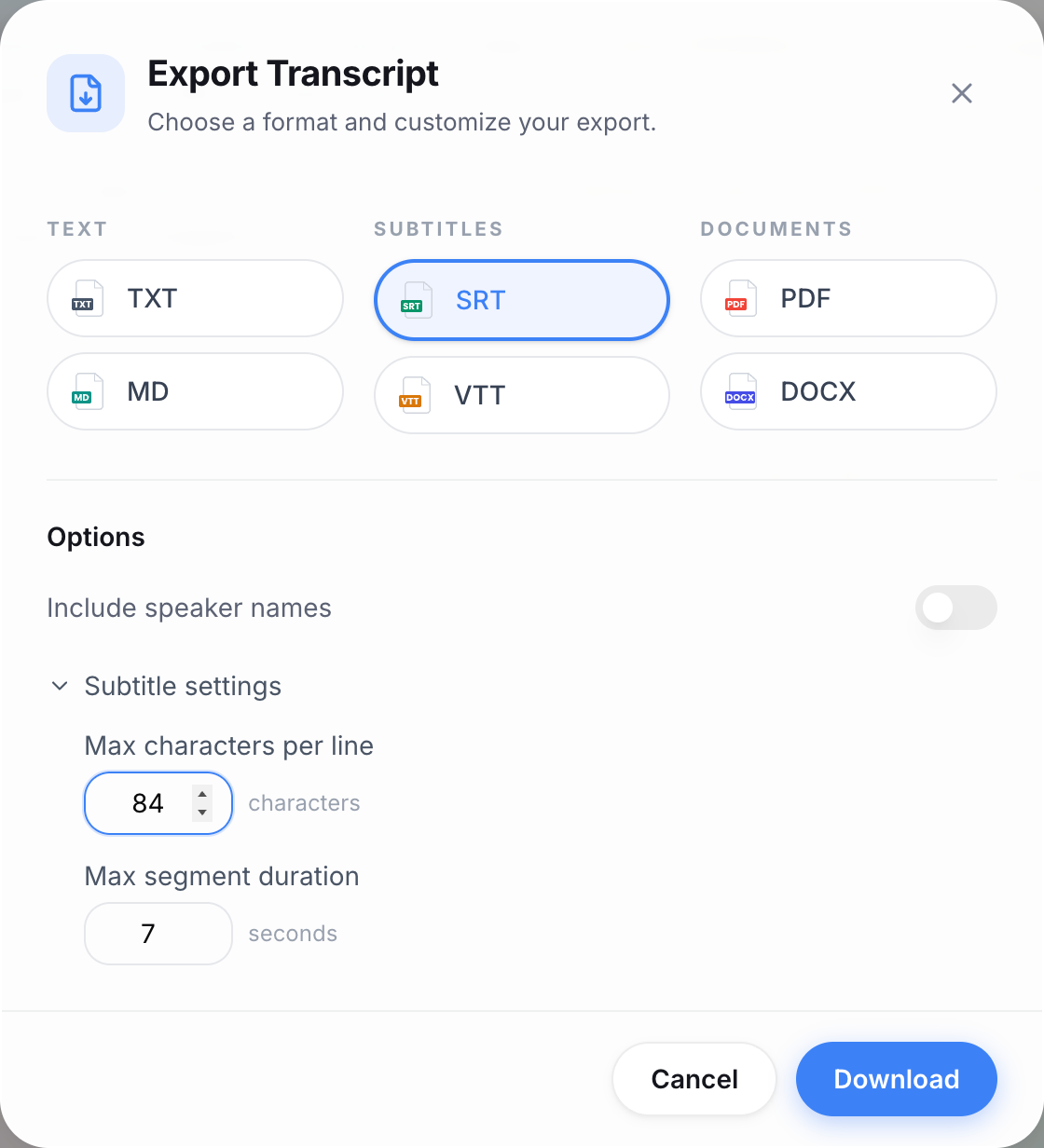
PrismaScribe makes the closed-caption files; if you're starting from a video file, the MP4 to SRT page shows the route. From a finished transcript on the web, open Export and pick SRT or VTT under Subtitles. Under Options:
- Include speaker names. Shown when the transcript has speaker labels, and on by default, but the dialog remembers your last choice for each format in that browser. In SRT the name goes in square brackets, like
[Speaker 1], at the start of each paragraph's first caption, and it counts toward the character limit. In VTT every caption gets a voice tag such as<v Speaker 1>. - Subtitle settings → Max characters per line (click Subtitle settings to open it). From 40 to 200, default 84. Each caption is written as a single line, so this number caps the whole caption, and most players wrap it on screen if it doesn't fit. A paragraph longer than the limit becomes several numbered captions that share its time in proportion to their length.
- Subtitle settings → Max segment duration. From 3 to 15 seconds, default 7. In the current export it doesn't shorten a caption on its own: the character limit does the splitting, so a short paragraph spoken slowly stays one caption for as long as it lasts.
Paste a link, get a searchable transcript
Free plan includes 30 minutes of transcription every month. No credit card.
A caption never runs across two paragraphs, so caption breaks follow the paragraphs in your transcript. Pressing Enter in the editor to split a paragraph also starts a new caption at that point. If "Tag audio events" was on when you uploaded (it is by default), sounds such as laughter and applause are marked in the caption text, which is what accessibility captions are meant to include.
What PrismaScribe doesn't do is draw captions onto the video or style them. Font, size, color and position come from the player or the editor. For open captions, give the SRT to whoever edits the video, with two changes first: switch "Include speaker names" off, because the brackets are plain text and would be burned in with everything else, and lower "Max characters per line" so each caption fits the frame. On a vertical clip the editor may still wrap each caption onto two lines.
When you design for open captions, leave room at the bottom of the frame, keep the captions clear of name graphics and logos, and put enough contrast behind the words. Before you export the final video, play ten seconds of it on the smallest screen your audience is likely to use.
Our test: one webinar at two caption lengths
We tested this on a scripted 41-second webinar opening, read by a synthetic voice (the presenter, Dana Whitfield, and her company, Larkspur Goods, are made up). We uploaded the MP3 on the web with the default settings: language detected automatically, Recognize Speakers and Tag audio events on. The transcript was ready about 15 seconds after we clicked Transcribe and used 1 minute of the allowance, since a 41-second file counts as a full minute. A synthetic voice reading a script is the easiest audio there is, so the interesting part is the caption files, not the accuracy.
We exported the SRT twice with speaker names off. At the default 84 characters the file had 12 captions. The first three:
- Caption 1,
00:00:00,060 --> 00:00:02,880: Hi, everyone, and thanks for joining us today. - Caption 2,
00:00:02,880 --> 00:00:06,926: I'm Dana Whitfield, and I run the payments team at Larkspur Goods. - Caption 3,
00:00:06,926 --> 00:00:10,360: Today, I'll walk you through how our team moved checkout
At 42 characters, half the default, the same transcript gave 20 captions, the longest 40 characters:
- Caption 1,
00:00:00,060 --> 00:00:02,479: Hi, everyone, and thanks for joining us - Caption 2,
00:00:02,479 --> 00:00:04,093: today. I'm Dana Whitfield, - Caption 3,
00:00:04,093 --> 00:00:06,513: and I run the payments team at Larkspur
At 84, four of the 12 captions ended at a full stop; at 42, two of the 20 did, and the rest broke mid-phrase. That's the price of captions short enough for a phone screen.
The files also had two kinds of stub caption, the sort that flashes past before anyone can read it:
- Stubs at paragraph breaks. The transcript starts a new paragraph roughly every 30 words, or when the speaker changes, whether or not a sentence has ended. Our four paragraphs began at 0:00, 0:10, 0:21 and 0:32, each mid-sentence, so the 42-character file had a caption that read only "thirty-two percent. The".
- Stubs at the character limit. The last sentence ran 85 characters, one over the 84 limit, so it was cut at the last space and the final caption was just "go", on screen for about an eighth of a second.
To fix them before anything is burned in:
- Open the exported SRT in a text editor and look for captions of one or two words.
- For a stub at a paragraph break, join the two paragraphs in the transcript (Backspace at the start of the second), then press Enter where the sentence ends.
- For a stub at the limit, press Enter at a comma or full stop near it so the paragraph splits there, or raise the character limit slightly.
- Export again and check the same spot.
In a one-hour talk there are a few hundred paragraph breaks, so fix only the stretch you're burning in. Do it before you translate: a translation made earlier loses its timed lines, and with them its SRT and VTT export, when the paragraph count changes, until you regenerate it. Joining or splitting also rebuilds that paragraph from its words, so check that any sound tags in it are still there.
In practice this webinar would have three homes. The replay on your site gets the SRT as closed captions, or the VTT if it plays in your site's own player. A short clip for a feed goes to the editor with the SRT; the clip starts later than the recording, so the editor shifts the captions to the clip's start before burning them in. The event screen gets a full-length copy with open captions. If someone then spots a wrong product name, the replay gets a new file in a minute, while the clip and the event copy have to be rendered again. That re-rendering is the real price of open captions.
Four questions that decide it
Answer these in order:
- Can you confirm the place the video will play accepts a caption file? If not, you probably need open captions there.
- Might you fix the words or add a language after publishing? If yes, keep a caption file, even if you also burn captions in.
- Does anyone watching rely on captions to follow the video? Then make sure they get them wherever it plays: open captions where a file might not show, closed captions where they should be able to adjust or hide the text.
- Do you need both? Keep the SRT, and make an open-captioned copy only for the places that need it. Leave the caption track off that copy, or the words appear twice.
Pick one video you've already published, export its SRT, and list every place it's shown where a caption file isn't accepted. Those are the places that need an open-captioned copy, and everywhere else the file does the job. If you're starting from a recording with no captions yet, the subtitle generator is the quickest way to get that first file.
Frequently asked questions
Are closed captions the same as subtitles?
Not quite, though platforms use the words loosely. Captions are written for viewers who can't hear the audio, so they include meaningful sounds such as [laughter] or [door slams] as well as speech. Subtitles are usually written for viewers who can hear but don't understand the language, so they carry dialogue only. Both can be open or closed.
Can search engines read open captions?
Don't count on it. Burned-in words are pixels, so a search engine or video platform would have to read them off the frames. A caption file is text from the start. Whether a platform uses caption text for search or automatic translation is up to the platform, so check its help page.
What does "open caption" mean at a cinema?
It means a screening where the captions are shown on the big screen for everyone, the same idea as burned-in captions on a video. Many cinemas also offer personal caption devices at their other screenings, which work like closed captions: only the person using one sees the text.
Can I make caption files on the free plan?
Yes. SRT and VTT exports are on every plan, Free included. The Free plan's limits apply to the recording, not the export: files up to 15 minutes and 500 MB, 15 minutes a day and 30 minutes a month. A full-length webinar needs a paid plan or top-up hours.
Should I keep the SRT after burning captions in?
Yes, and the transcript too. The SRT lets you upload the same captions as a track somewhere that accepts one. The transcript lets you export again at a different length later, for example 42 characters for a short clip and the default 84 for the full replay, or translate it when a new language is needed.


Turn hours of audio into searchable text
Upload a file or paste a link. Speaker labels, translations, and six export formats included.