
Translate video subtitles into multiple languages: what to fix first
Review one transcript, translate it language by language, export one SRT or VTT file per language and check each one in the player before you publish.

Armin
Published 10 min read

Key takeaways
- Fix and split the original transcript first. Each paragraph becomes one translated caption, and later splits break the translation.
- Each language exports as its own SRT or VTT file, such as webinar_es.srt, with no speaker names and no length settings.
- In our test, translated captions ran about 10 seconds and 171 to 228 characters each, too long to read without splitting.
- Correct a translation line by line in its editor. Translating again uses the transcript's characters again.
- Translation has its own monthly character allowance. On Free, three languages of a 10-minute talk won't fit.
To translate video subtitles into multiple languages, get one reviewed transcript in the original language, translate it one language at a time, and export a separate SRT or VTT file per language. The catch, which our test below shows, is that a translated file comes out as one long caption per transcript paragraph. So the work that matters happens in the original, before the first translation runs.
Fix and split the source first
Mistakes travel. A misheard name in the original transcript ends up in every translation, inside a sentence that reads smoothly, which makes it harder to spot. So spend your review time on the source: start the audio, click a word to jump to that moment, and correct the line in place. If the video is full of product names or jargon, paid plans let you add them as custom vocabulary (the Keyterms field when you upload), at 1.25 times the file's minutes.
Then look at the paragraphs. The transcript starts a new paragraph roughly every 30 words, or when the speaker changes, whether or not a sentence has ended, and each paragraph becomes one translated caption. Pressing Enter where a sentence ends splits a paragraph and gives every translation shorter captions at that point, though a long sentence still makes a long caption. At our test clip's pace, a 10-minute talk has about 50 paragraphs, so split the stretches that matter most rather than all of them.
Do the splitting before you translate. A translation is matched to the transcript's paragraphs line by line, so if the paragraph count changes afterwards, it loses its timed lines: the side-by-side view, line editing and the SRT and VTT export disappear until you regenerate it. Renaming speakers is different. The translation view always shows the transcript's current speaker names, so you can rename at any point.
Everything below happens on the web dashboard, which is where transcript and translation exports live.
Translate video subtitles into multiple languages, one pass at a time
- Upload the video, or paste a link on the web if it's on a supported site such as YouTube or Vimeo.
- Transcribe, review and split the source language, as above.
- Click Translate, then Add language. Set Formality and Idioms first (the FAQ explains both), because clicking a language starts the translation straight away. It's one language per click. The picker also shows how many translation characters you've used this month.
- Read the result. The translation opens as its own page, and you'll find it again under Translate on the transcript page. "Side by side" shows each source paragraph next to its translation, with the speaker and timestamp; "Translated" shows the target language alone.
- Correct lines. Click Edit at the top of the translation, click a line and type; pressing Enter or clicking away saves it. Click Done when you've finished.
- Export. In the translation's More menu, choose Export, then SRT or VTT. There are no options to set. The file arrives named after the recording plus a language code, such as
product-launch-webinar_es.srt. - Play it in the player you'll use, then move to the next language.
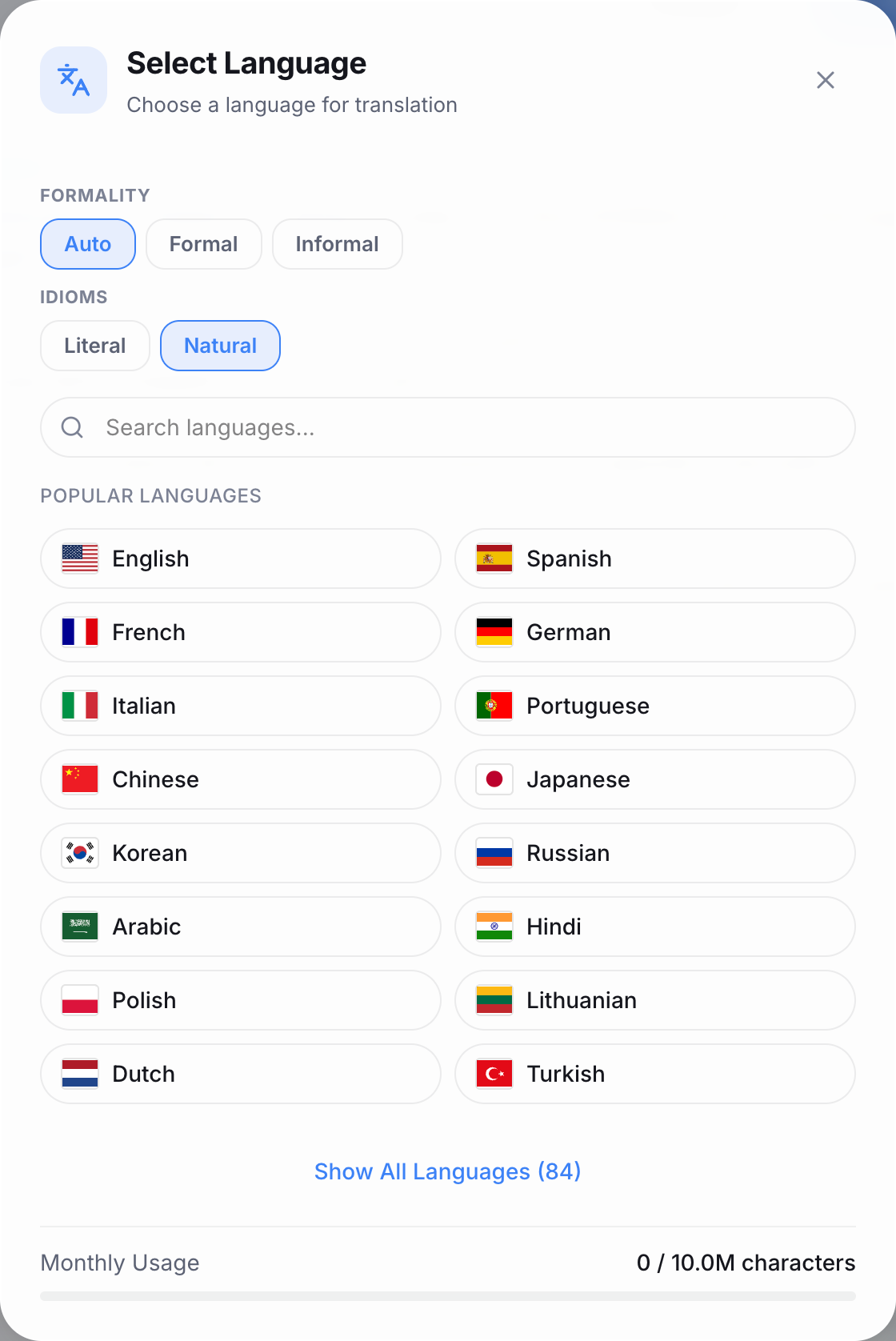
Doing languages one at a time lets each language's quirks show up before you've committed to all of them. The translate video page lists popular language pairs; translation covers 99+ languages.
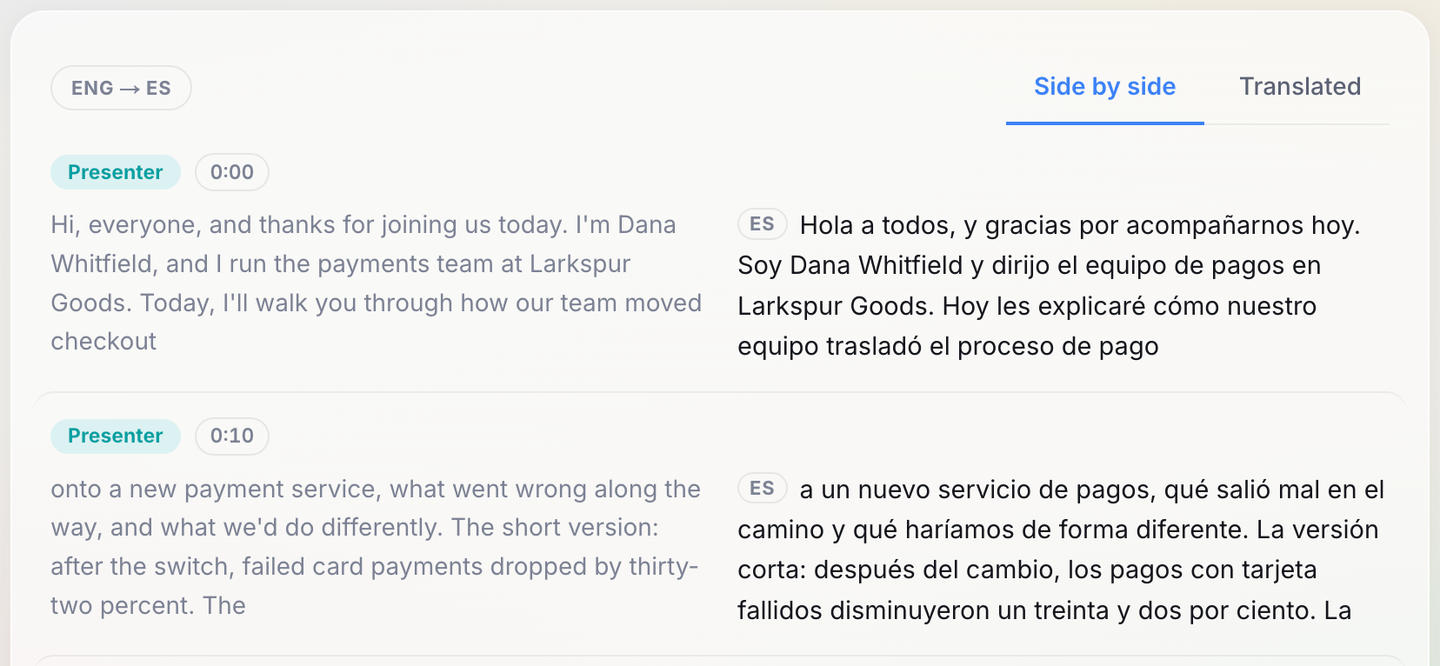
Our test: one webinar, two languages
We ran the sequence on a scripted 41-second webinar opening read by a synthetic voice (the presenter, Dana Whitfield, and her company, Larkspur Goods, are invented). It was transcribed with the default settings in about 15 seconds. The English needed no fixes, so we renamed the speaker to "Presenter" and translated into Spanish, then German, with Formality on Auto and Idioms on Natural. Our test account was on Pro, which is why the picker shows a 10.0M allowance.
Each translation was ready within about 4 seconds of clicking the language and used 662 characters, the length of the English text, so 1,324 in total. With Formality on Auto, German came back in the formal "Sie" form ("danke, dass Sie heute dabei sind"), and Spanish addressed the audience in the plural ("Hoy les explicaré"). Both kept "Dana Whitfield", "Larkspur Goods" and "API" as written and wrote the figure out in words, as the transcript had it: "treinta y dos por ciento" and "zweiunddreißig Prozent". There was nothing to correct.
We hadn't split the paragraphs first, and the exported files show why you should. The English transcript had four paragraphs of 26 to 30 words, so each file had four captions of about 10 seconds, between 171 and 228 characters on a single line. The English SRT of the same transcript, at the default 84 characters, had 12. The first two captions of each file:
- Spanish caption 1,
00:00:00,060 --> 00:00:10,360: Hola a todos, y gracias por acompañarnos hoy. Soy Dana Whitfield y dirijo el equipo de pagos en Larkspur Goods. Hoy les explicaré cómo nuestro equipo trasladó el proceso de pago - Spanish caption 2,
00:00:10,440 --> 00:00:21,780: a un nuevo servicio de pagos, qué salió mal en el camino y qué haríamos de forma diferente. La versión corta: después del cambio, los pagos con tarjeta fallidos disminuyeron un treinta y dos por ciento. La - German caption 1,
00:00:00,060 --> 00:00:10,360: Hallo zusammen und danke, dass Sie heute dabei sind. Ich bin Dana Whitfield und leite das Zahlungsteam bei Larkspur Goods. Heute werde ich Ihnen zeigen, wie unser Team den Bezahlvorgang - German caption 2,
00:00:10,440 --> 00:00:21,780: auf einen neuen Zahlungsdienstleister umgestellt hat, was dabei schiefgelaufen ist und was wir anders machen würden. Die Kurzfassung: Nach der Umstellung sanken die fehlgeschlagenen Kartenzahlungen um zweiunddreißig Prozent. Die
Paste a link, get a searchable transcript
Free plan includes 30 minutes of transcription every month. No credit card.
Every translated file shares those traits:
- One caption per transcript paragraph, with that paragraph's start and end time, never split, and cut mid-sentence wherever the original paragraph was.
- No caption settings. The export dialog's "Max characters per line" applies only to the original language.
- No speaker names, although the side-by-side view showed "Presenter" on every line. A TXT export of the translation keeps each speaker's name in front of their lines.
- Longer than the source. Spanish came to 785 characters and German to 800, both about a fifth longer than the English.
Files like these work as a timed translation, but not as on-screen subtitles. Split the original before translating, or split and re-time each file in a subtitle editor afterwards.
Keep a list of words that shouldn't be translated
Brand names, product names, feature labels and people's names usually stay as written. Custom vocabulary helps the transcription get them right; translation is a separate step, so check these terms in every output.
Keep a short do-not-translate list next to your files. After each translation, find every item on the list with your browser's find (Ctrl+F or Cmd+F) on the translation page, and correct any that changed in the translation's editor. For a slogan that relies on a pun, have a native speaker rewrite it. Regenerating the whole translation with Idioms set to Literal is possible (Regenerate, then "With changes…", on the translation's page), but it applies to every line and uses the transcript's full character count again.
Budget the characters before a big rollout
Translation has its own monthly character allowance on every plan. It doesn't use your transcription minutes or your AI generations:
- Free: 20,000 characters a month
- Starter: 500,000
- Premium: 2 million
- Pro: 10 million
Each translation counts the characters of the source transcript, once per language. Our 41-second clip, at about 170 words a minute, cost 662 characters per language. At that pace a 10-minute talk comes to about 9,700 characters per language, so three languages need about 29,000: more than Free's 20,000 a month. Slower speakers use fewer. Translate one video first and check the usage line in the language picker before you queue the rest; current plan details are on the pricing page.
Corrections are where characters disappear without anyone noticing. Translating a language again (Regenerate on the translation's page, with the same settings or with changes) makes a new version, keeps the old one in Version history, and uses the transcript's full character count again. Fix a wrong word in the translation's editor instead, and regenerate only when the transcript itself changed after you translated.
Know where translation needs a human
Start with a language someone on your team can read. That person can catch problems in the workflow itself, such as a name that gets translated when it shouldn't, before you repeat the mistake across languages nobody can check. After that, order by audience size or deadline.
Translation from a good transcript is a strong draft, and for understanding a video it's often all you need. If the subtitles carry legal terms, safety instructions, medical content or wordplay, have a native speaker read the priority languages before publishing. Accuracy also depends on the source: transcription is 99% accurate on clean audio, and any error left in the transcript carries into each language.
Test each file in the real player
Check your player or platform's help page for how it lists subtitle tracks, and tag each file with the right language so viewers see "Español", not "Track 2". Then switch through every language in the real player:
- Characters display properly. Hindi, Thai and other scripts need a font the player has, or viewers see empty boxes.
- Right-to-left languages such as Arabic and Hebrew keep their punctuation and numbers in place.
- Captions don't overflow the screen and stay up long enough to read.
- Timing still matches the speech.
If speakers in the video switch languages mid-sentence, our page on multilingual transcription explains how the transcript handles it. Then take one finished video, fix and split its transcript, translate it into the language your team can read, and play that file before you start the next language.
Frequently asked questions
Can I translate into several languages at once?
No. Each click in the language picker starts one translation, so you add languages one at a time. Each is a separate translation with its own page and its own export, and each counts the transcript's characters against your monthly allowance.
Do translated subtitle files keep speaker names?
No. Translated SRT and VTT files contain the caption text and timing only. The names appear in the translation's side-by-side view and in a TXT export of the translation, where each line starts with the speaker's name.
What happens to a translation if I edit the transcript afterwards?
It depends on the edit. A corrected word doesn't reach a translation made earlier, so fix it in the translation too. Splitting or joining paragraphs changes the count the translation is matched to, so it loses its timed lines and its SRT and VTT export until you regenerate it, which uses the characters again. Renamed speakers do show up, because the translation view reads the current names.
Can I do this in the iPhone app?
You can translate a transcript and read the translation in the app, but subtitle exports, for the original and for translations, are on the web dashboard. Do the splitting and exporting there.
What do the Formality and Idioms options do?
Formality sets how formally the translation addresses people: Formal asks for the polite "you" (Sie, vous, usted), Informal for the familiar one (du, tu), and Auto lets the translation choose. Idioms set to Literal keeps figures of speech close to the original wording; Natural, the default, translates them by meaning, as a translator normally would.

Keep reading


Turn hours of audio into searchable text
Upload a file or paste a link. Speaker labels, translations, and six export formats included.